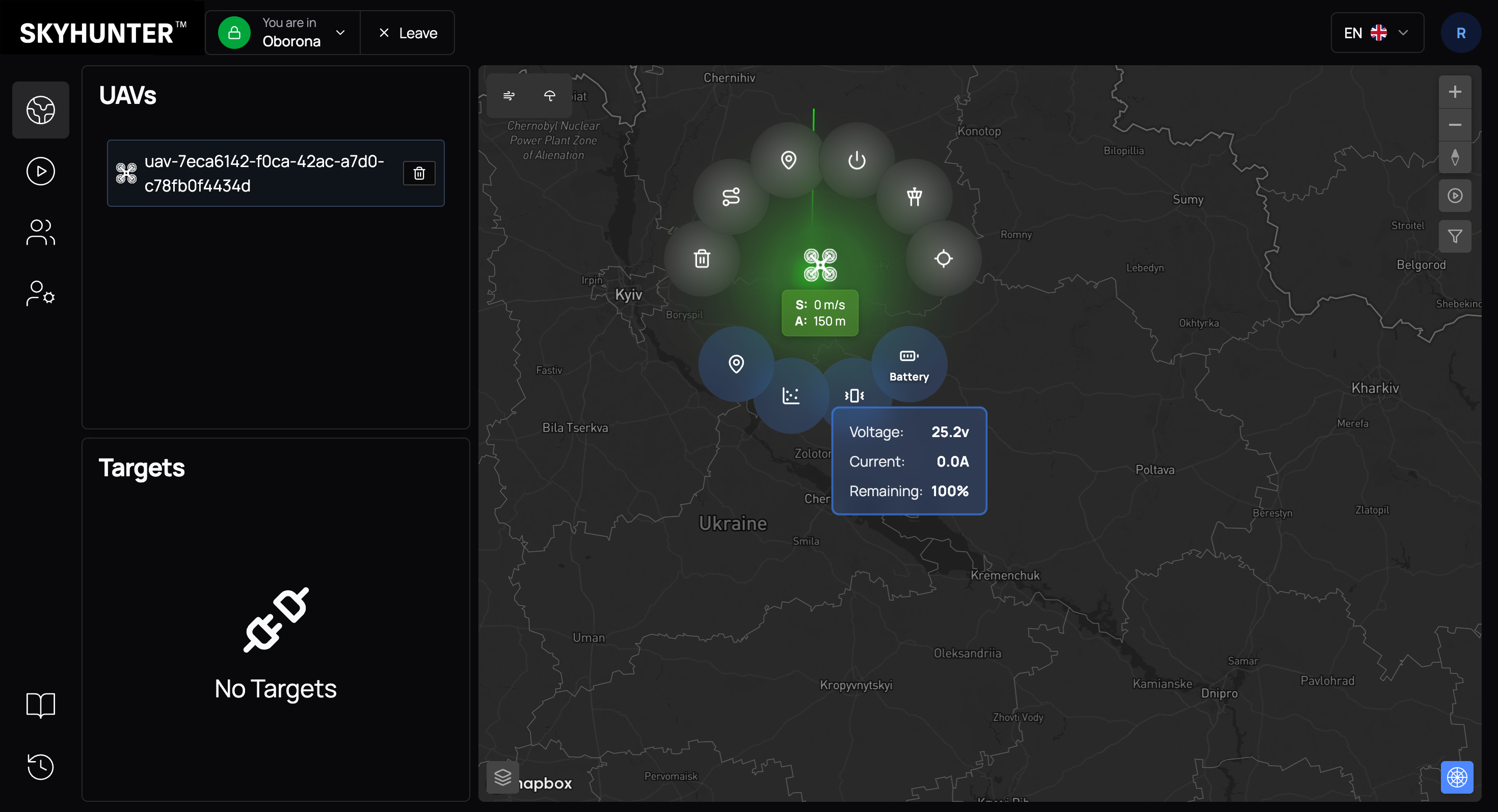
UAV Radial Menu
For detailed UAV control in SkyHunter, a radial menu is used — an intuitive interface for quick access to commands and diagnostics.
The menu opens by clicking on the drone icon on the map. After that, a control circle appears around the UAV, divided into two functional zones:
- upper section — operational control commands;
- lower section — diagnostics and technical parameters.
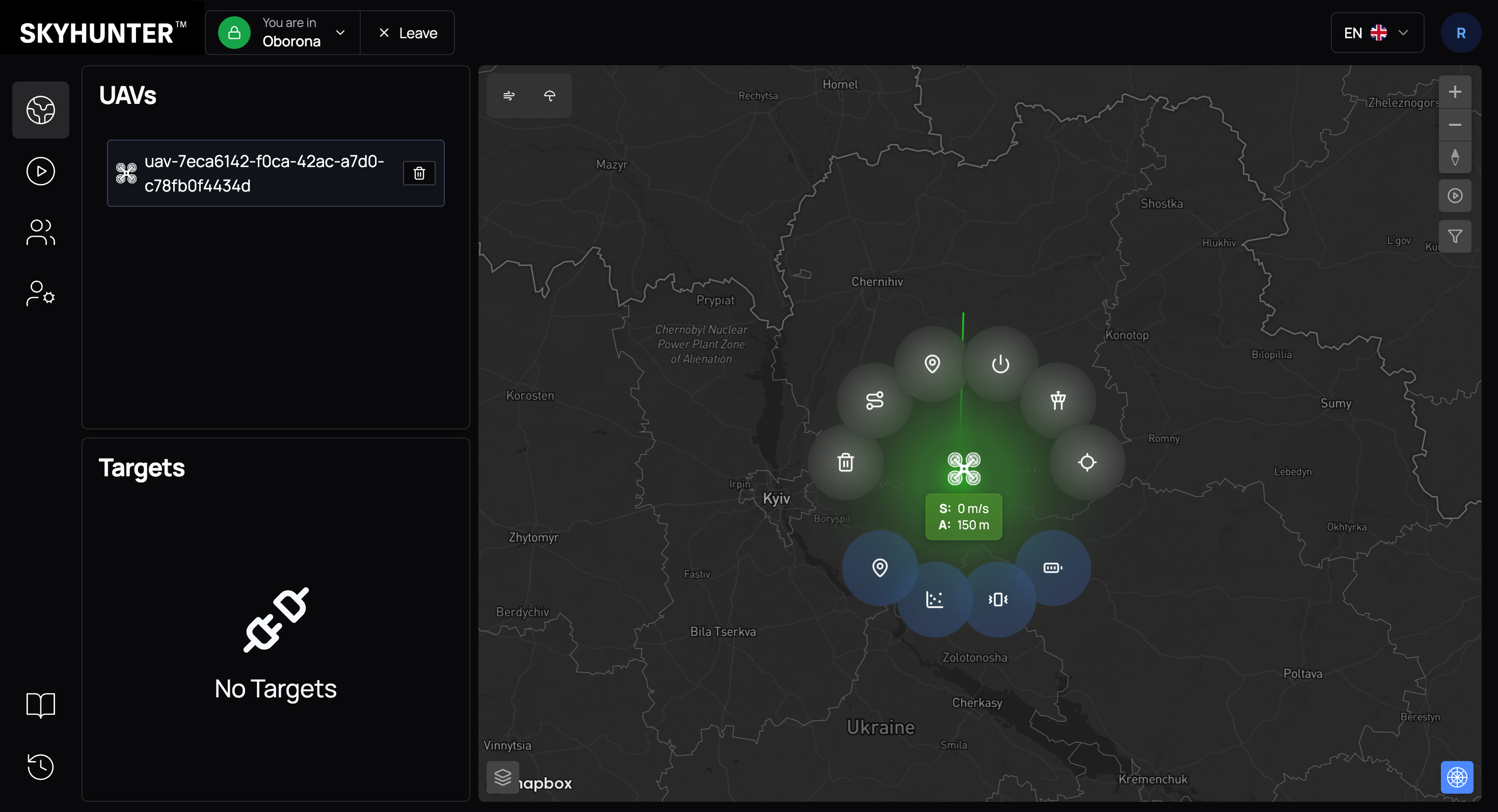
Upper Section — Operational Control
The upper section contains the main commands that affect UAV behavior in real time.
Arm/Disarm
Command for initializing and starting the motors. After activation, the drone enters a flight-ready state.
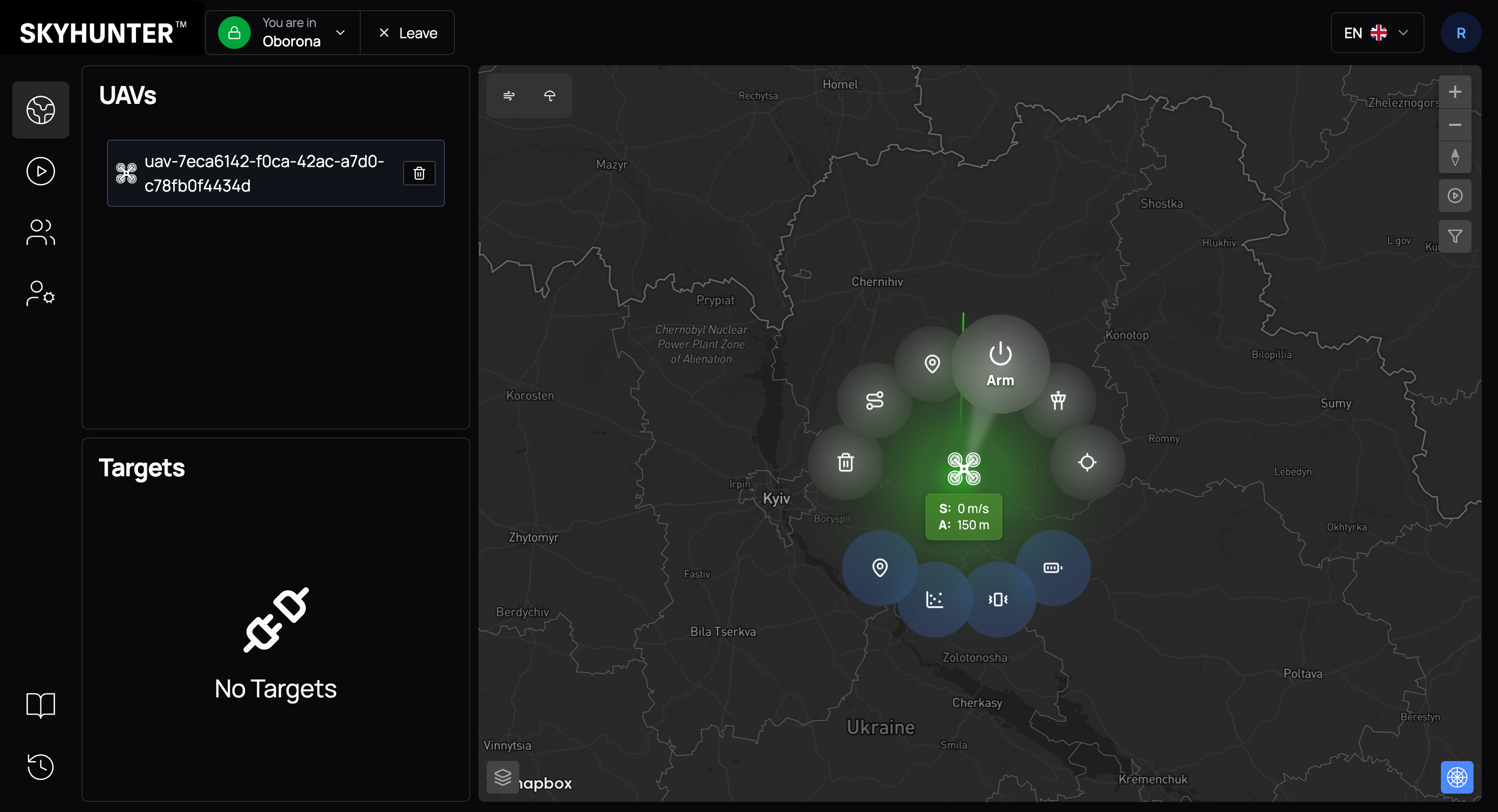
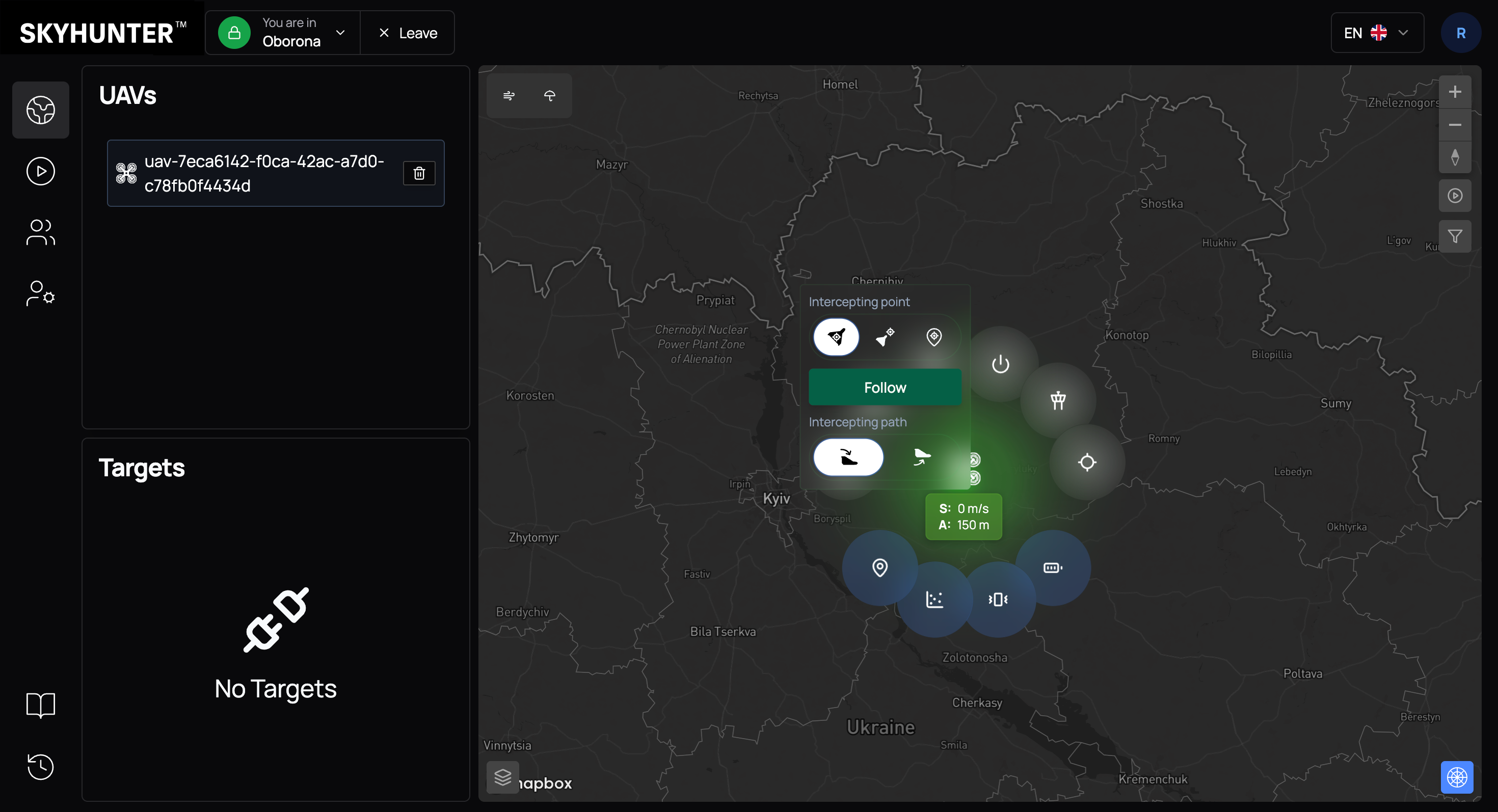
Following type
Opens settings for the target tracking algorithm (interception type). Different behavior models are available — for example, direct pursuit, interception with lead, or flight along predefined coordinates.
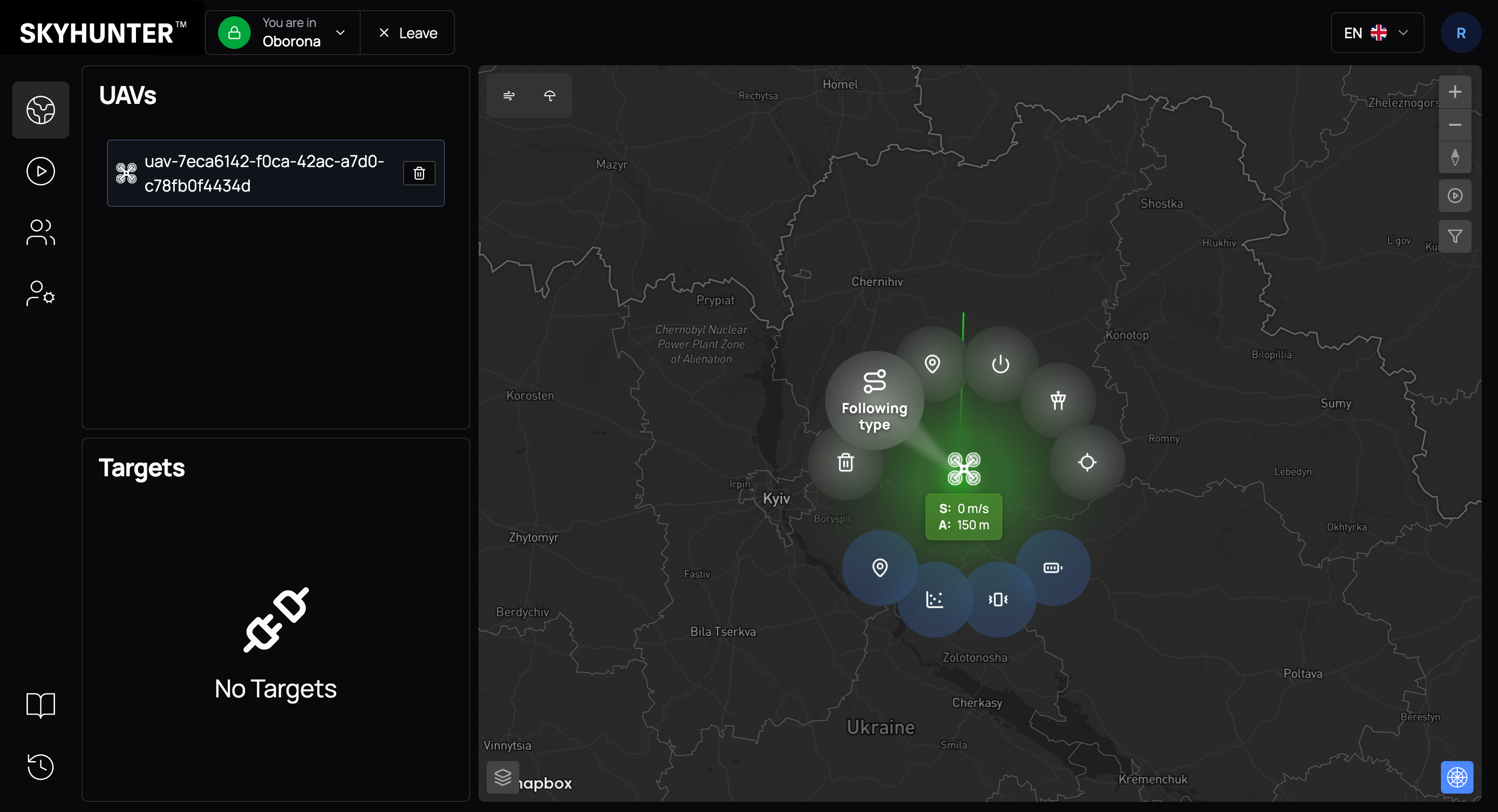
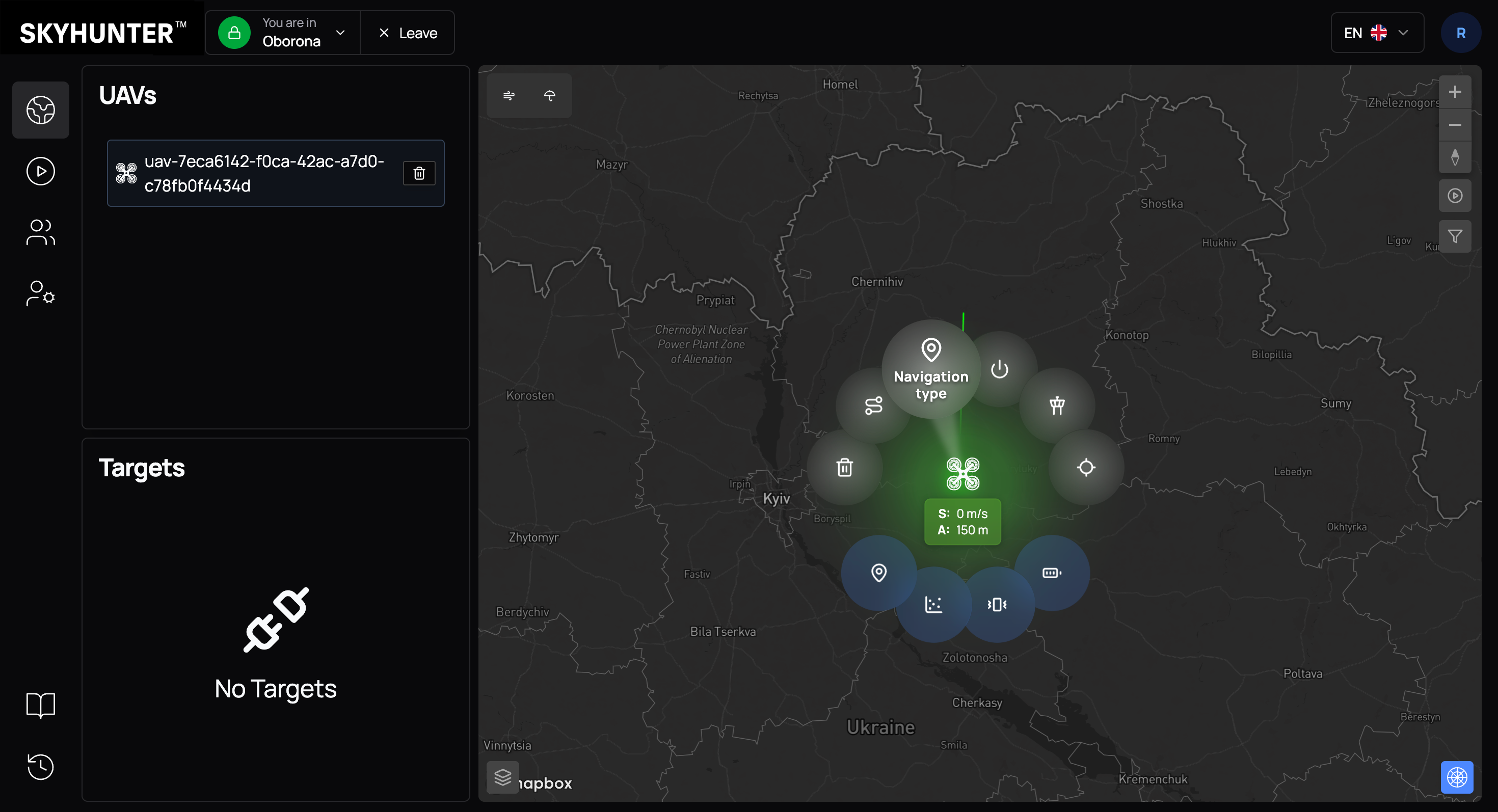
Navigation type
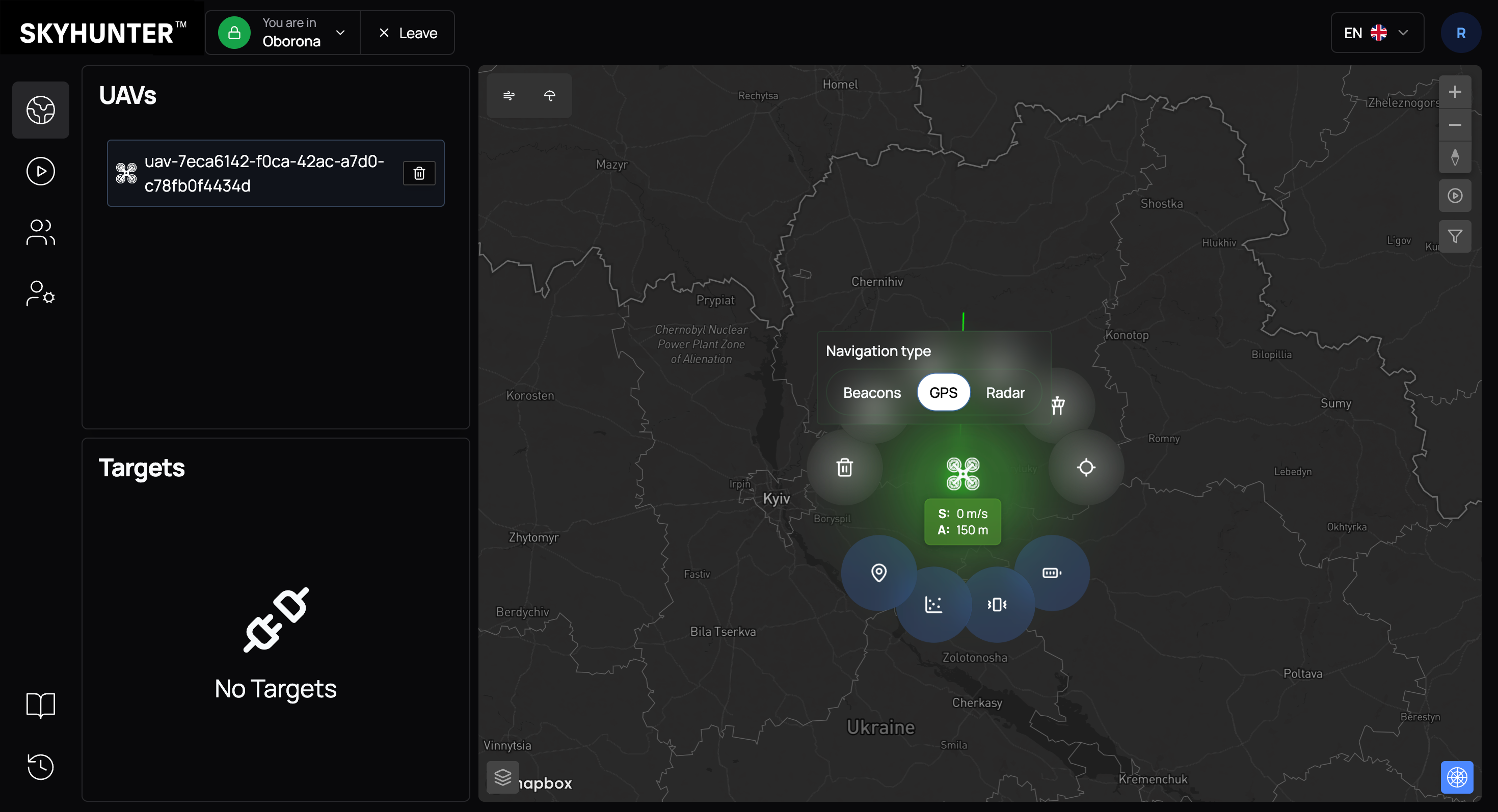
Allows selecting the navigation source:
- Beacons — positioning via ground beacons;
- GPS — satellite navigation;
- Radar — positioning based on radar data.
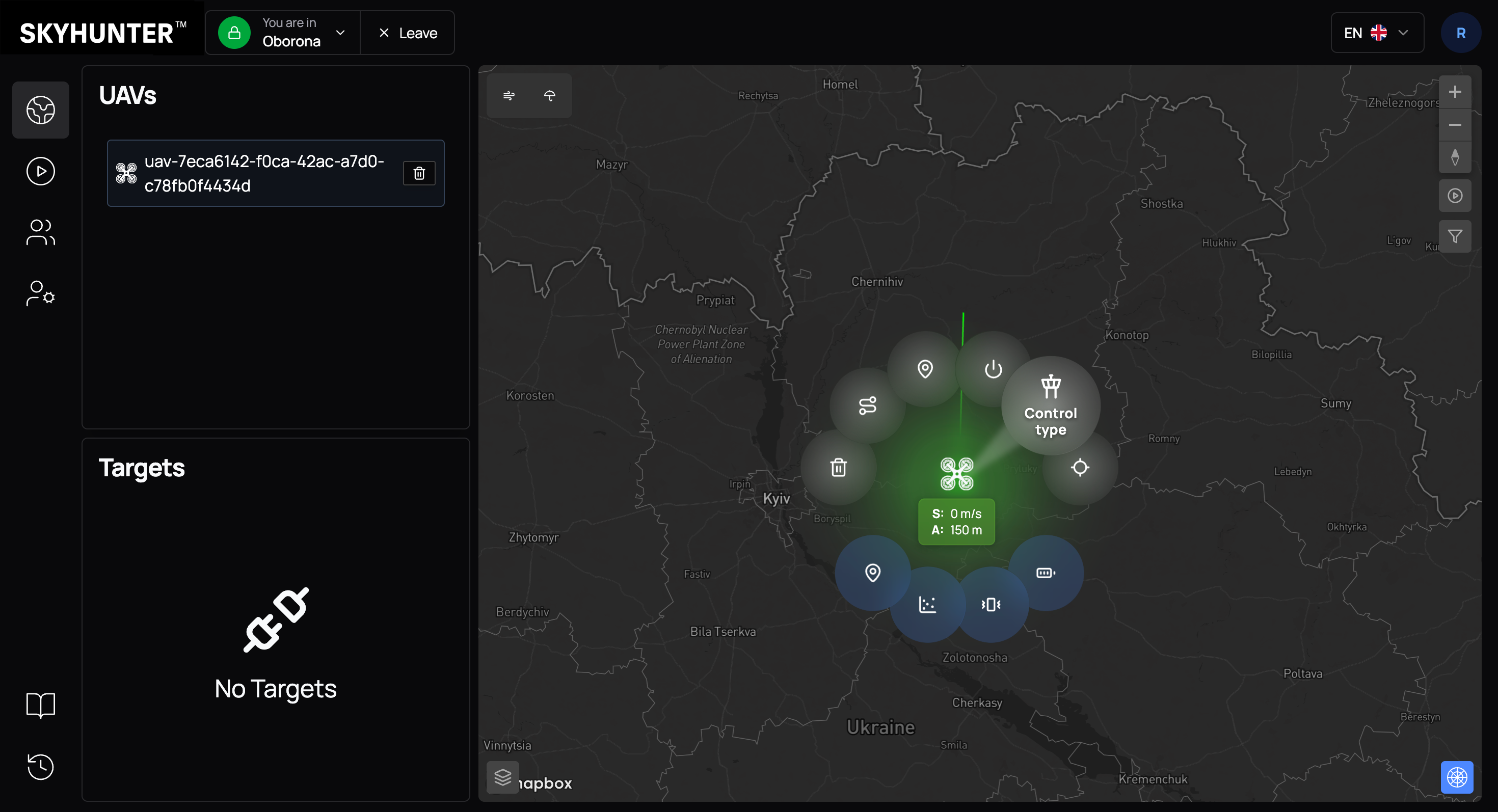
Control type
Defines the drone control mode:
- Guided — control using autopilot algorithms;
- System — control using SkyHunter algorithms;
- Pasika — control using SineLink Pasika algorithms.
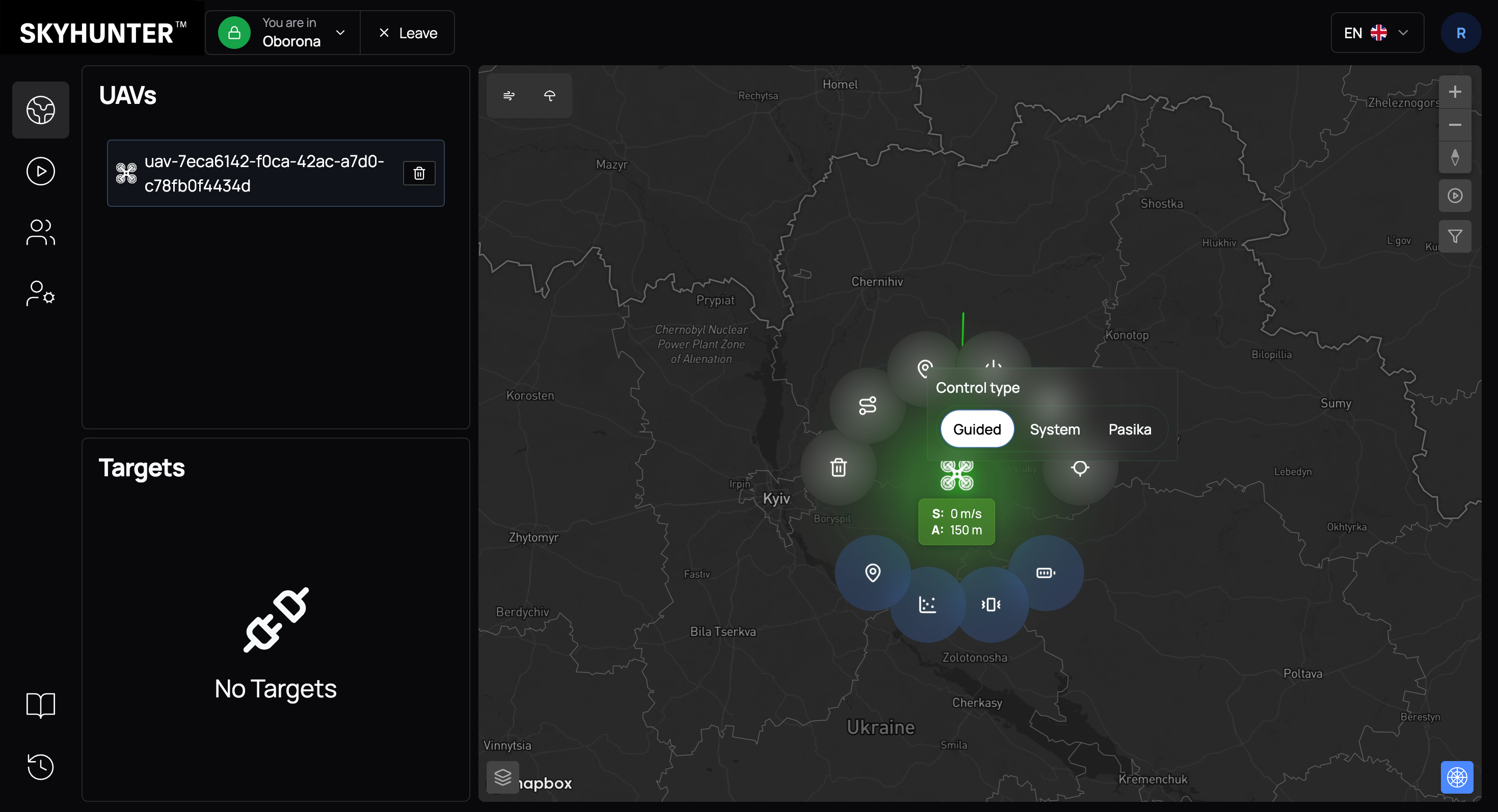
Follow this UAV
This command is used to focus the camera on the selected UAV. After activation, the interface automatically centers the map on this drone and dynamically follows its movement in real time.
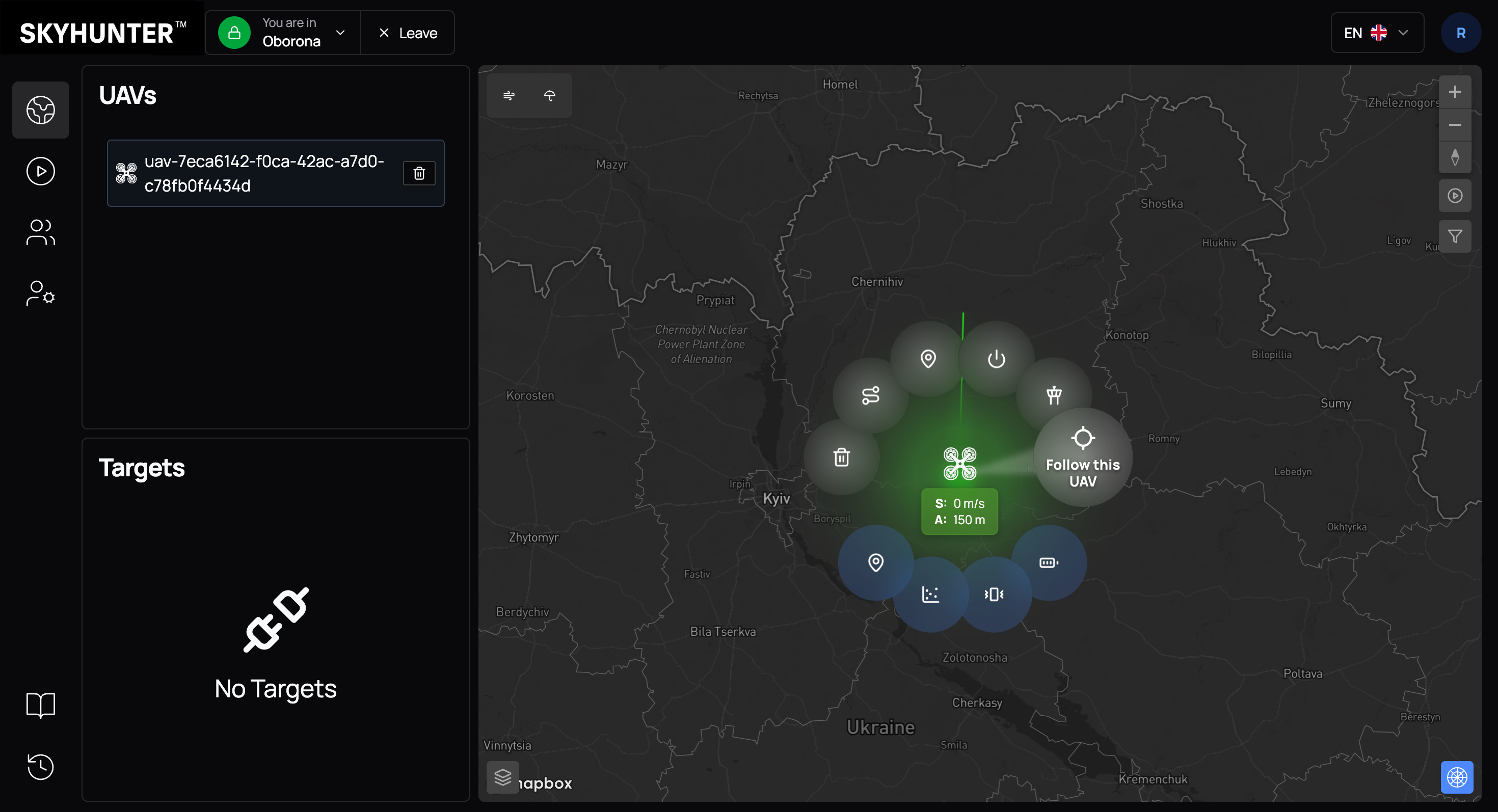
Delete
This command is used to reset the current simulator state and clear active connections. It allows restarting the simulated drone in case of freezing, loss of synchronization, or other technical issues. After execution, the simulator returns to its initial state and is ready for a new launch.
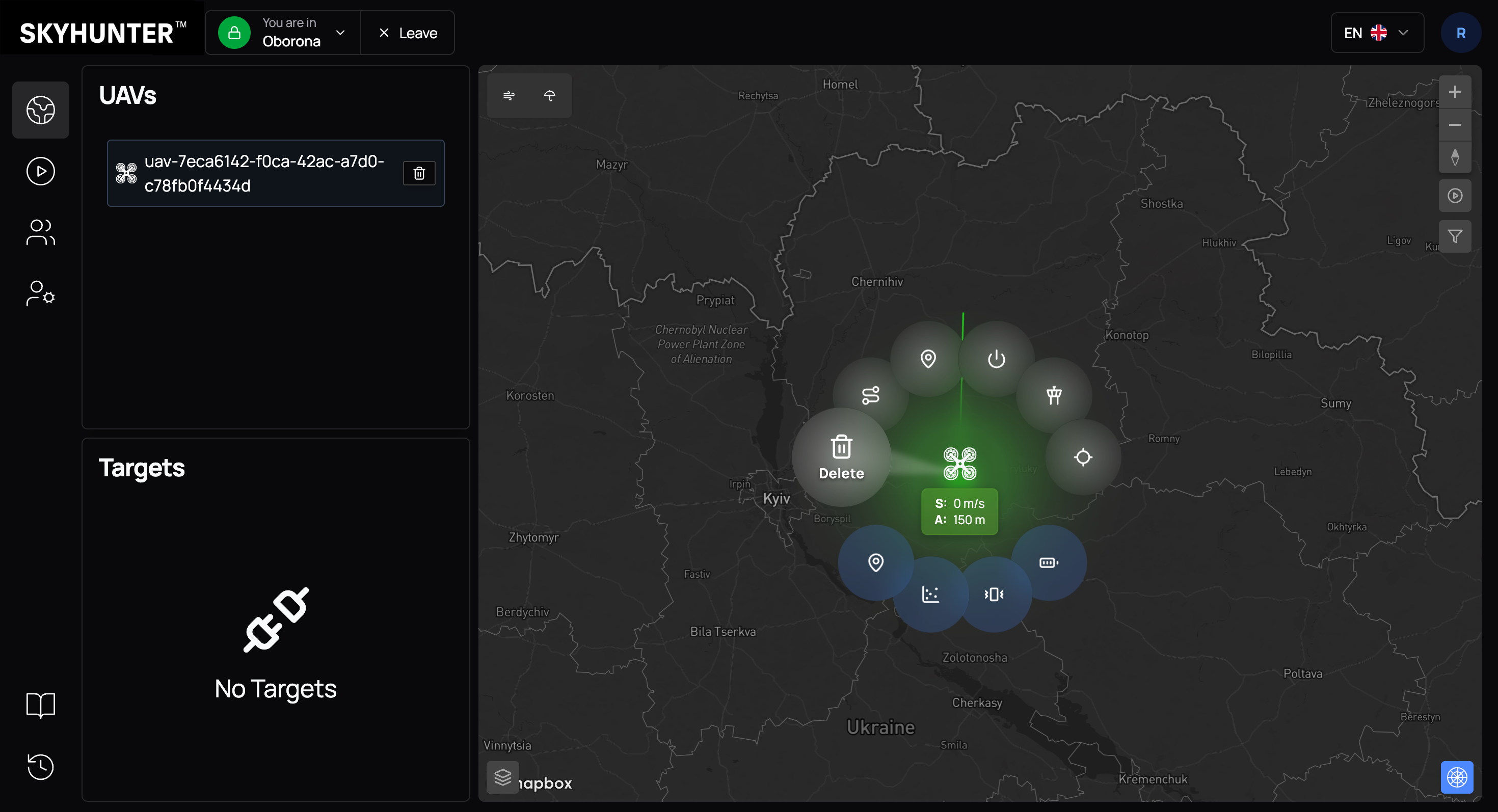
Lower Section — Diagnostics and Technical Status
The lower ring contains technical indicators that allow the operator to quickly assess the UAV state and make decisions.
The system uses color indicators to evaluate data:
| Color | Meaning |
|---|---|
| 🟢 Green | System operates normally |
| 🟠 Orange | Attention required |
| 🔴 Red | Critical situation |
Navigation status
Displays:
- active navigation type (GPS / Beacons / Radar);
- fix type (e.g., RTK);
- number of satellites;
- signal quality.
This section allows you to quickly determine whether positioning data is accurate enough to perform the mission.
| Color | Meaning |
|---|---|
| 🟢 Green | Navigation data is received in full and with normal quality |
| 🟠 Orange | Low quality of navigation data |
| 🔴 Red | No navigation data (no GPS, beacons, or radar data) |
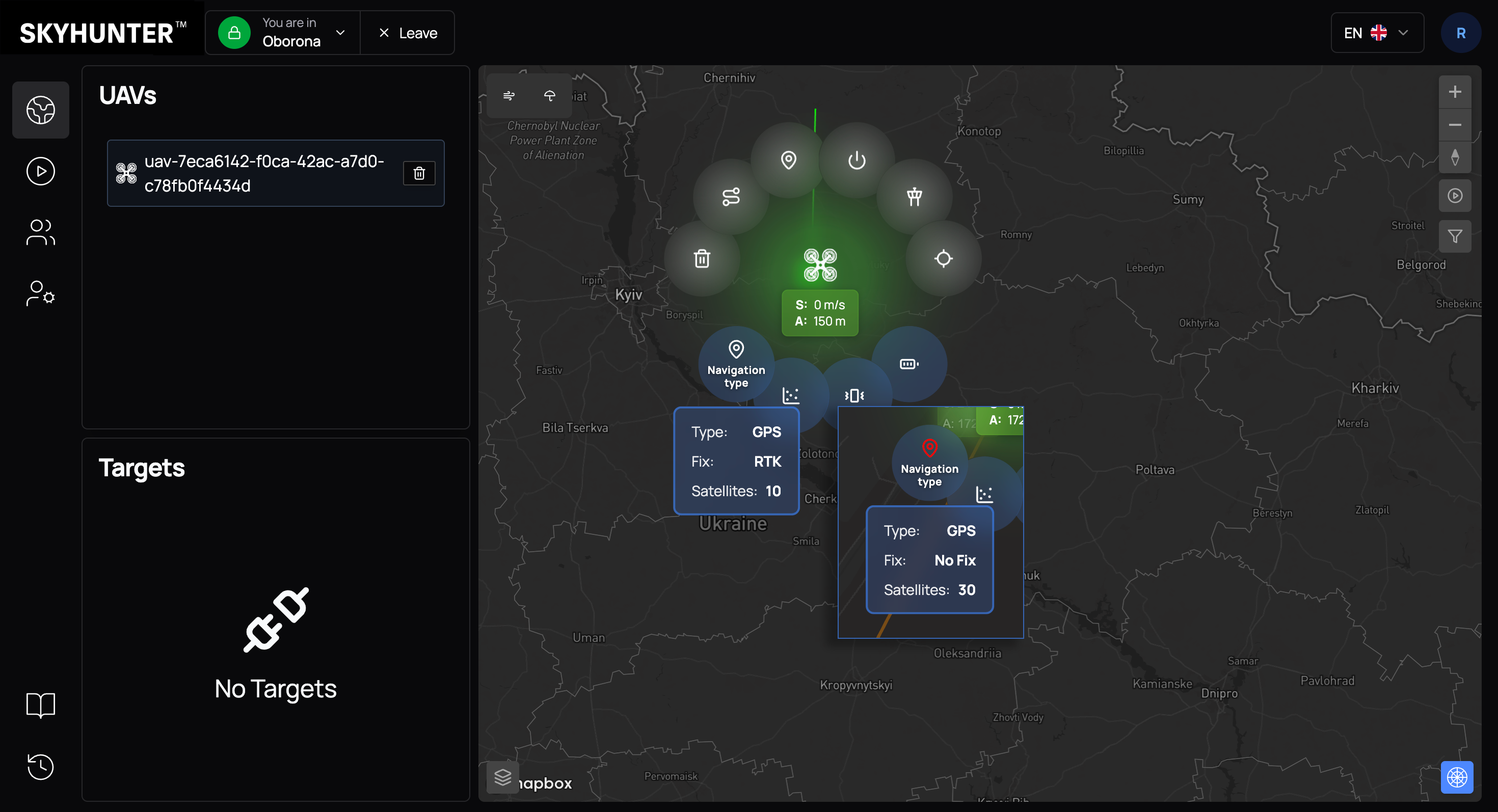
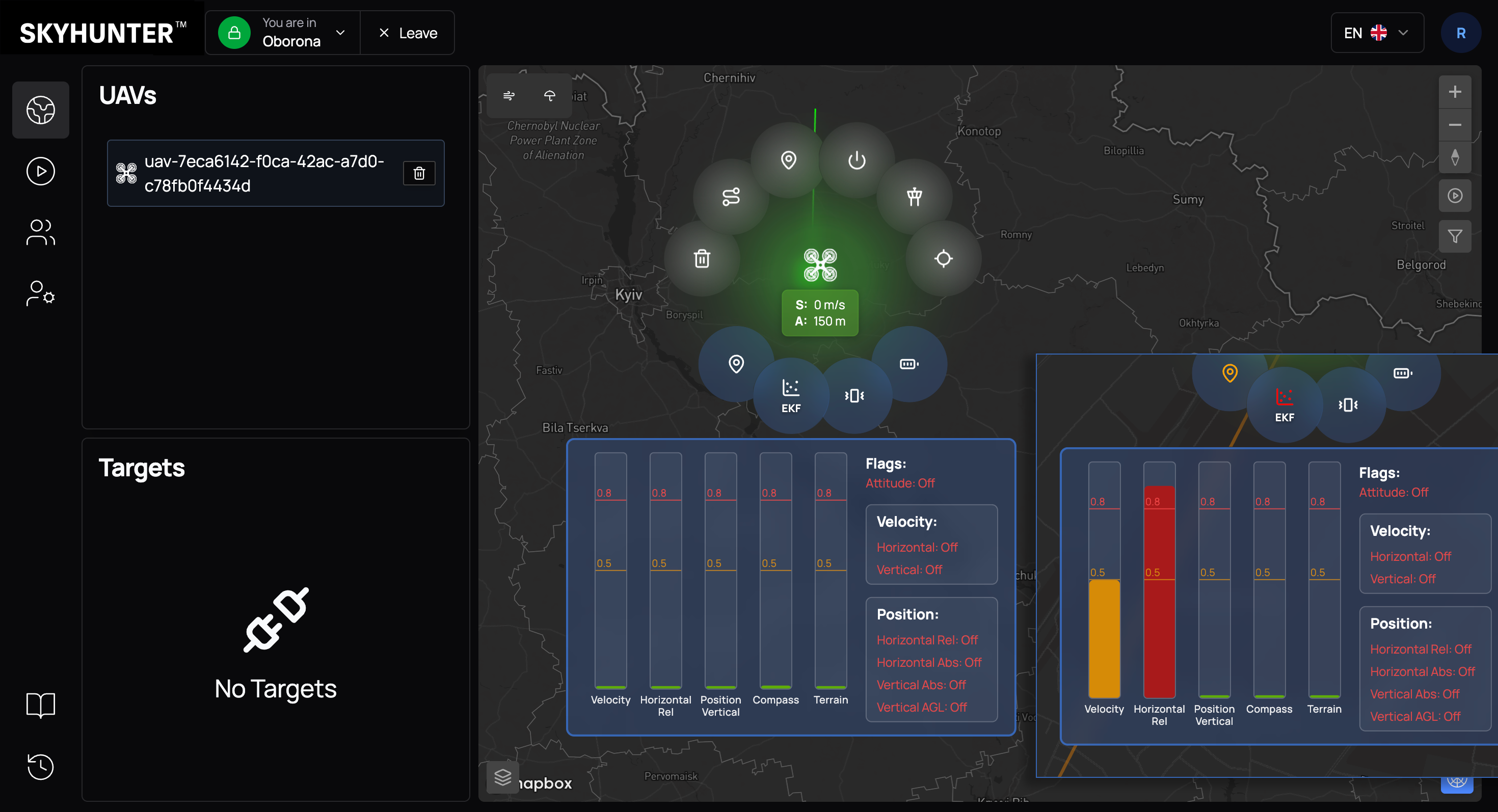
EKF
EKF (Extended Kalman Filter) reflects the level of trust in sensors and the state of position estimation algorithms.
Displayed metrics include relative error values for:
- velocity;
- horizontal position;
- vertical position;
- magnetic field (compass).
This is a key tool for diagnosing navigation or sensor issues.
| Color | Meaning |
|---|---|
| 🟢 Green | Everything operates normally |
| 🟠 Orange | EKF error exceeds 0.5 but does not exceed 0.8. This indicates issues with measured parameters (vertical or horizontal position, compass). In most cases, the cause is low-quality navigation data from external sources such as beacons or radar. |
| 🔴 Red | EKF error is 0.8 or higher. In this case, the autopilot continues operating based on the inertial navigation system, but there is a risk of error and INS failure, which is an undesirable mode of operation. |
Vibration
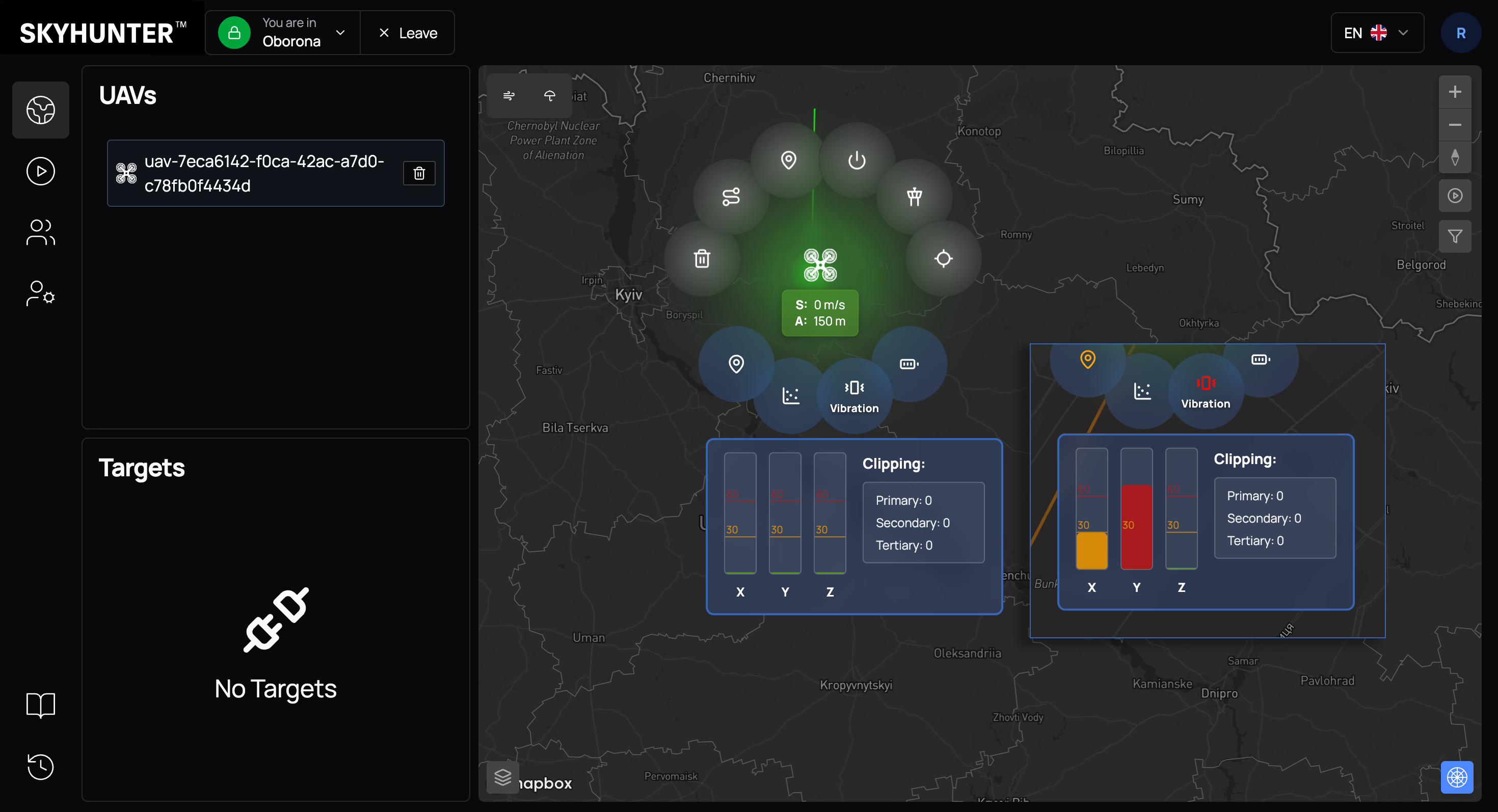
Displays vibration levels along axes X, Y, Z, as well as clipping counters (number of measurements at maximum accelerometer limits).
Regular monitoring of this parameter improves flight reliability.
| Color | Meaning |
|---|---|
| 🟢 Green | Values up to 30. Normal vibration level. Sensor and inertial system operation is stable. |
| 🟠 Orange | Values 30–60. Increased vibration level that is not fully filtered but still acceptable for flight. |
| 🔴 Red | Values above 60. High-risk zone. Flight is possible, but strong vibrations create sensor noise, which may lead to unstable inertial navigation system operation. Causes may include incorrect UAV configuration or structural platform vibrations. Flight is possible, but navigation stability may be reduced. |
Battery
Displays key power parameters:
- voltage;
- current consumption;
- remaining charge percentage.
This data is critically important for:
- planning interception time;
- calculating return distance;
- making decisions about emergency mission termination.
| Color | Meaning |
|---|---|
| 🟢 Green | Battery level above 50%. Normal operation, no mission limitations. |
| 🟠 Orange | Battery level 20–50%. Limited energy reserve. It is recommended to plan mission completion or UAV return. |
| 🔴 Red | Battery level below 20%. Critically low charge. Immediate mission termination and UAV landing are required. |