

Radar Management
The Radar Management section is designed for connecting, configuring, and administering radars within the SkyHunter system.
Radars are used for:
- 📡 receiving aerial tracks
- 🎯 detecting and tracking targets
- 🛰️ transmitting radar data to crews
- 🗺️ displaying the air situation on the map
- 🧭 refining navigation awareness during UAV operations
Main Radar Management Screen
The main screen displays a list of all added radars.
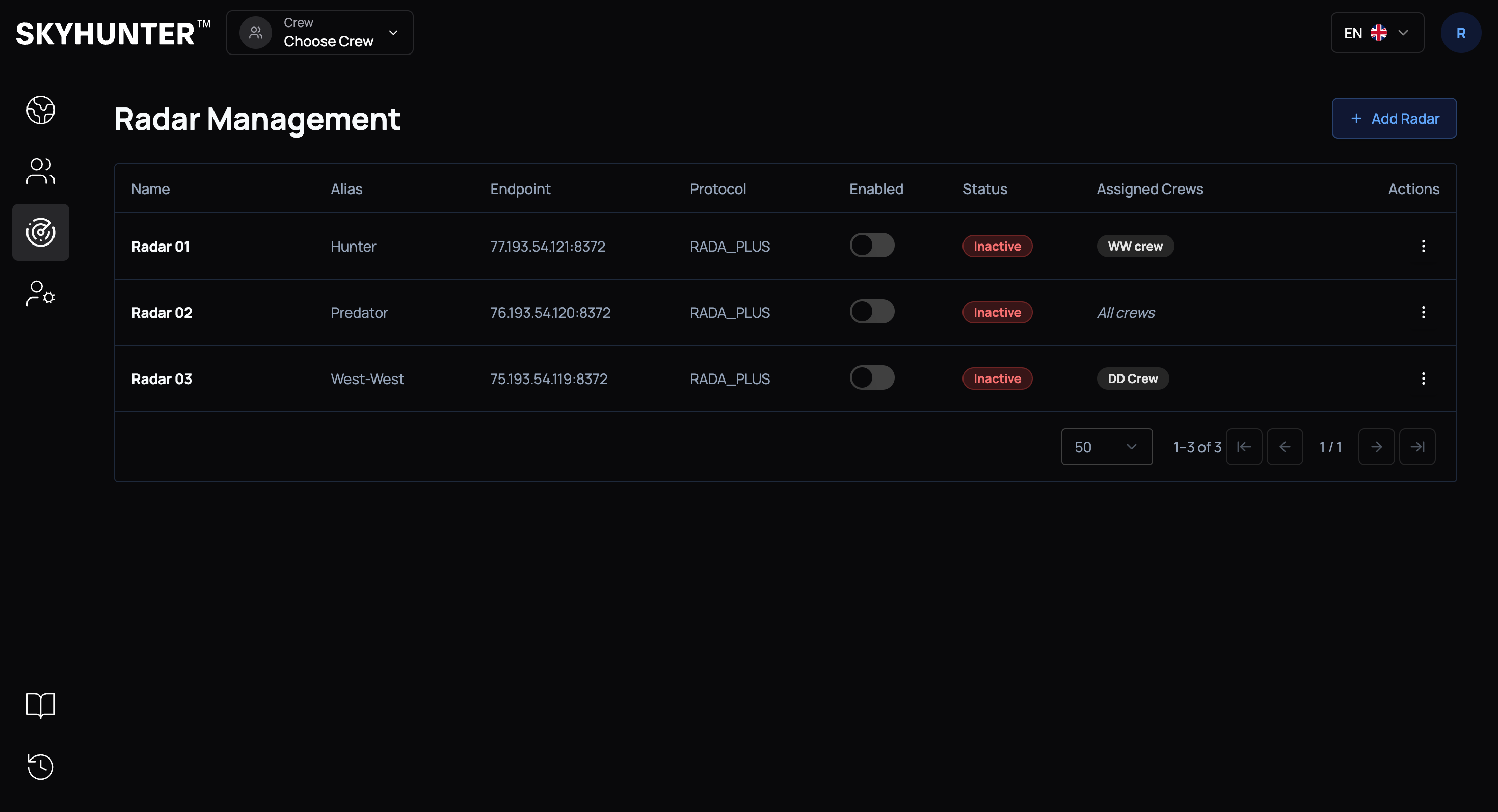
If no radars have been added yet, the table will display the following message:
No radars foundThe table contains key information about each radar.
| Field | Description |
|---|---|
| Name | Radar name within the system |
| Alias | Short radar name or callsign |
| Endpoint | Connection IP address and port |
| Protocol | Integration protocol |
| Enabled | Radar activation toggle |
| Status | Current radar status |
| Assigned Crews | Crews that have access to the radar |
| Actions | Radar actions menu |
Adding a Radar
To add a new radar, click the Add Radar button.
After that, a modal window for entering radar parameters will open.
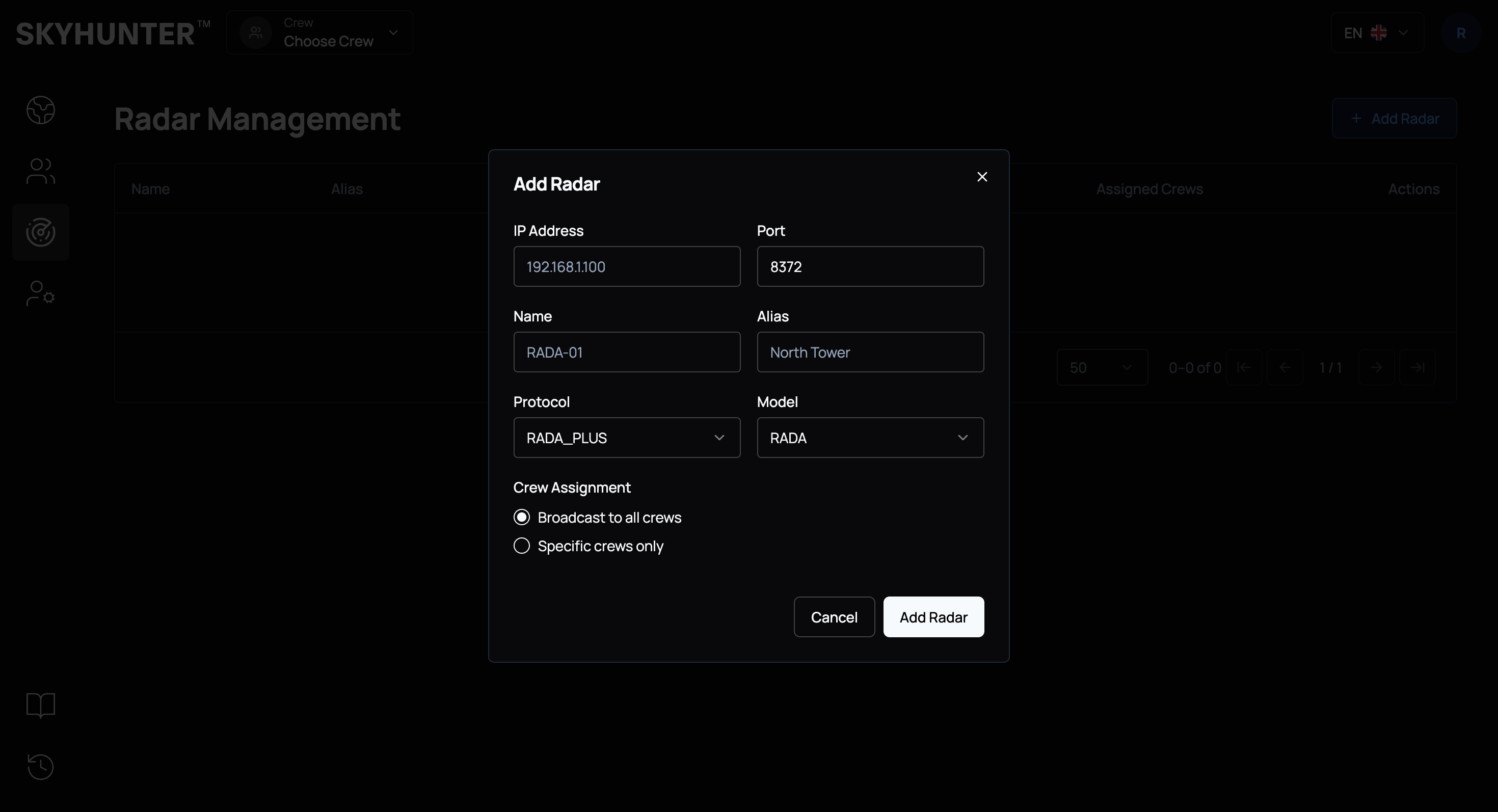
| Field | Description | Example |
|---|---|---|
| IP Address | IP address provided by the ZeroTier VPN network administrator | 78.193.54.121 |
| Port | Connection port | 8372 |
| Name | Unique radar name | RADA-000 |
| Alias | Short name or callsign | Oborona |
| Protocol | Integration protocol | RADA_PLUS |
| Model | Radar model | RADA |
After entering the parameters, you must define which crews will have access to the radar.
Two modes are available:
| Mode | Description |
|---|---|
| Broadcast to all crews | Radar is available to all crews |
| Specific crews only | Radar is available only to selected crews |
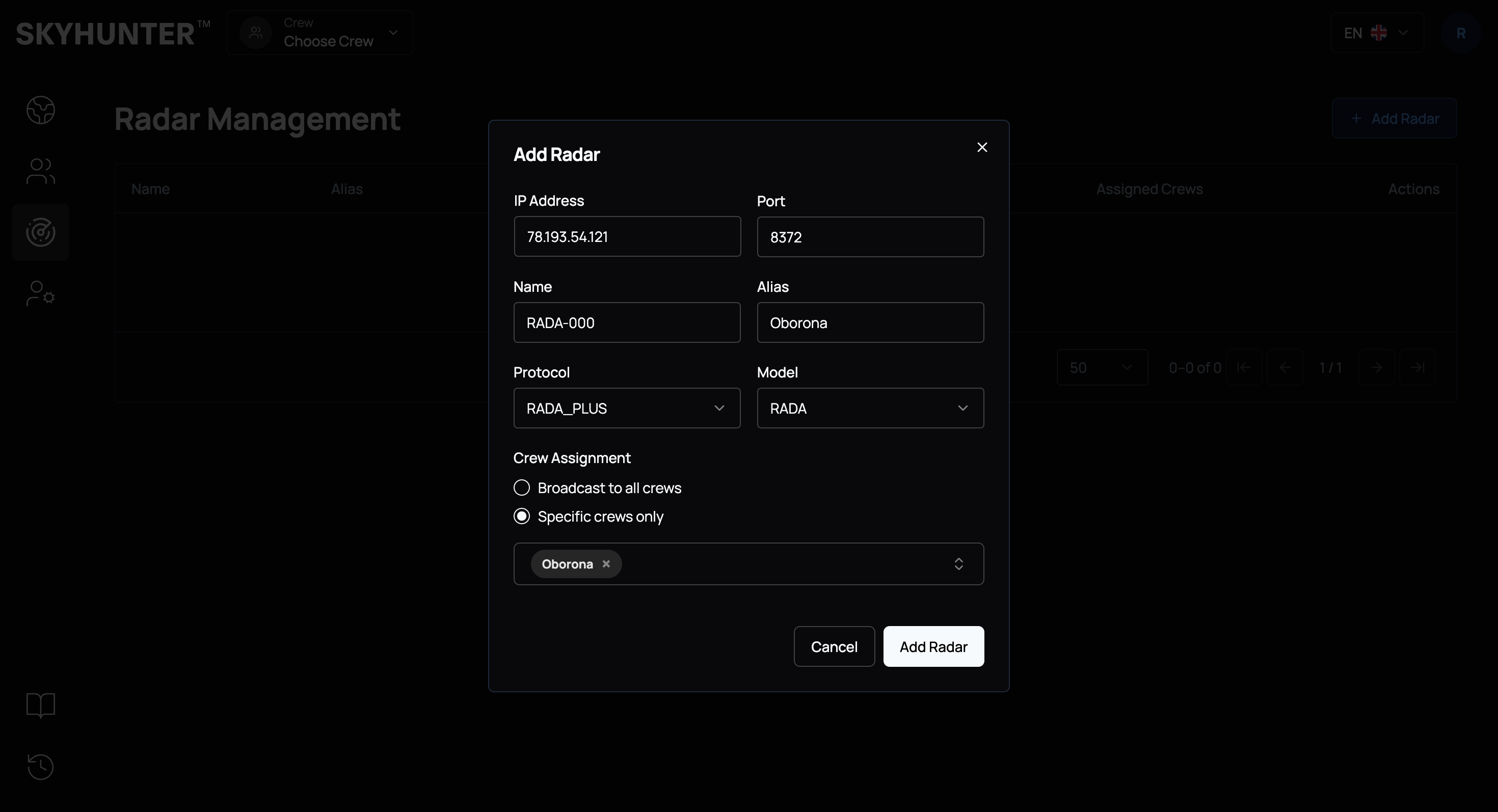
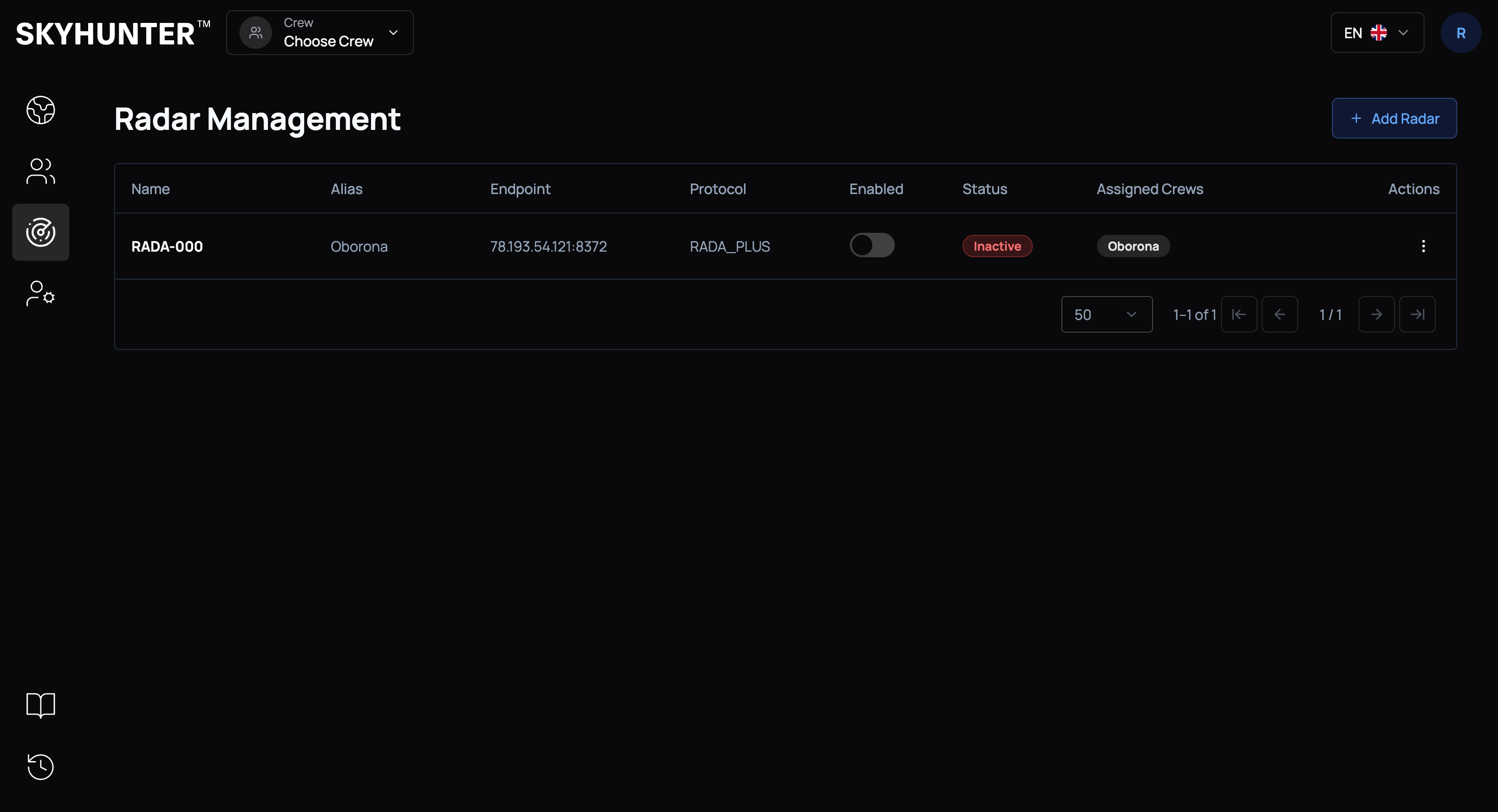
After successful creation, the radar will appear in the table.
Radar Status
The radar status indicates whether the system is receiving data from this source.
| Status | Meaning |
|---|---|
| 🟢 Active | Radar is active and transmitting data |
| 🔴 Inactive | Radar is not transmitting data or the connection is unavailable |
If a radar has the Inactive status, radar tracks will not be received by the system.
After the radar is physically connected, the status will change to Active and it will begin transmitting radar track data.
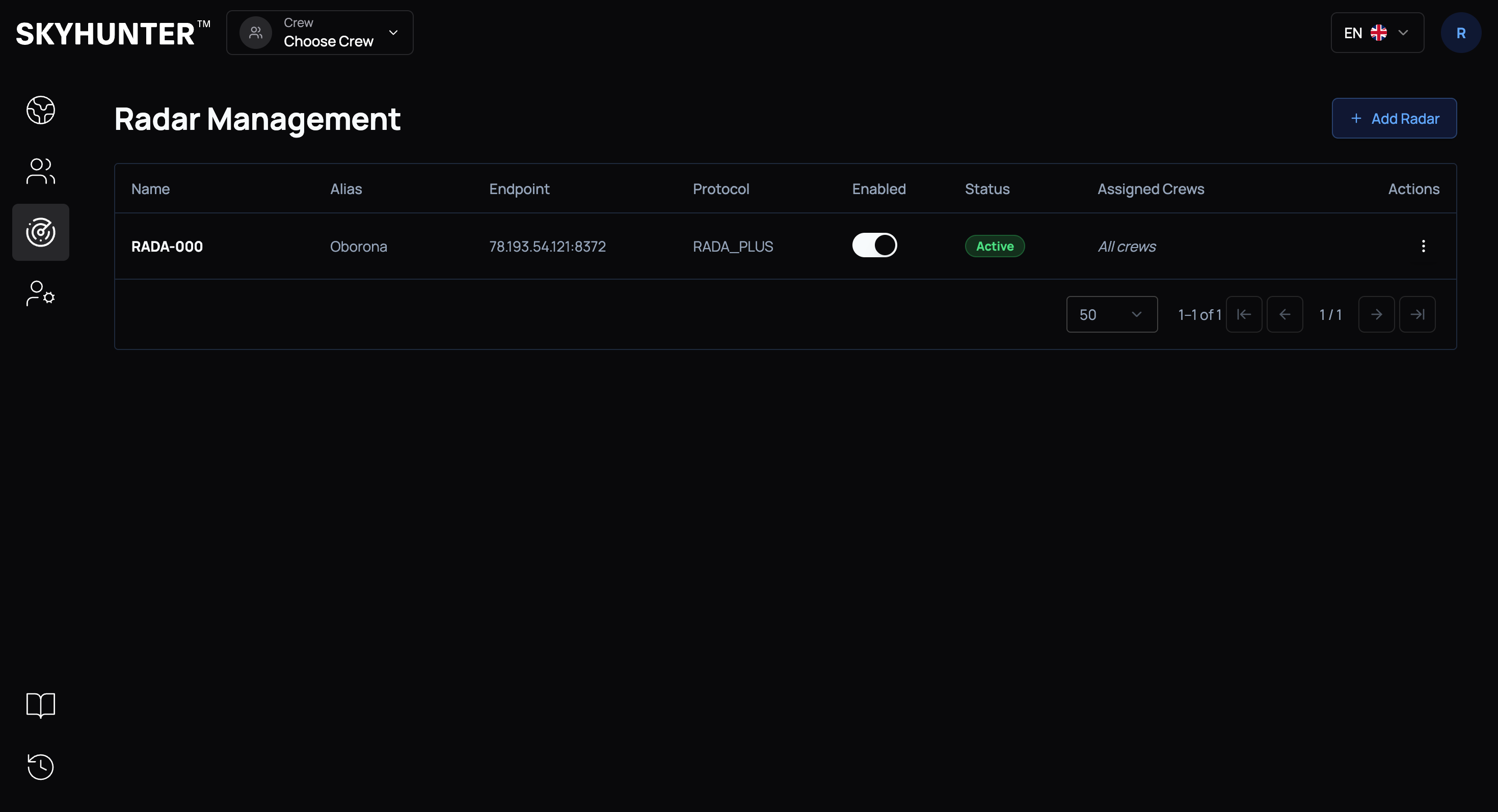
The Enabled toggle is used to enable or disable the radar without deleting its configuration.
Actions Menu
Each radar has an Actions menu available.
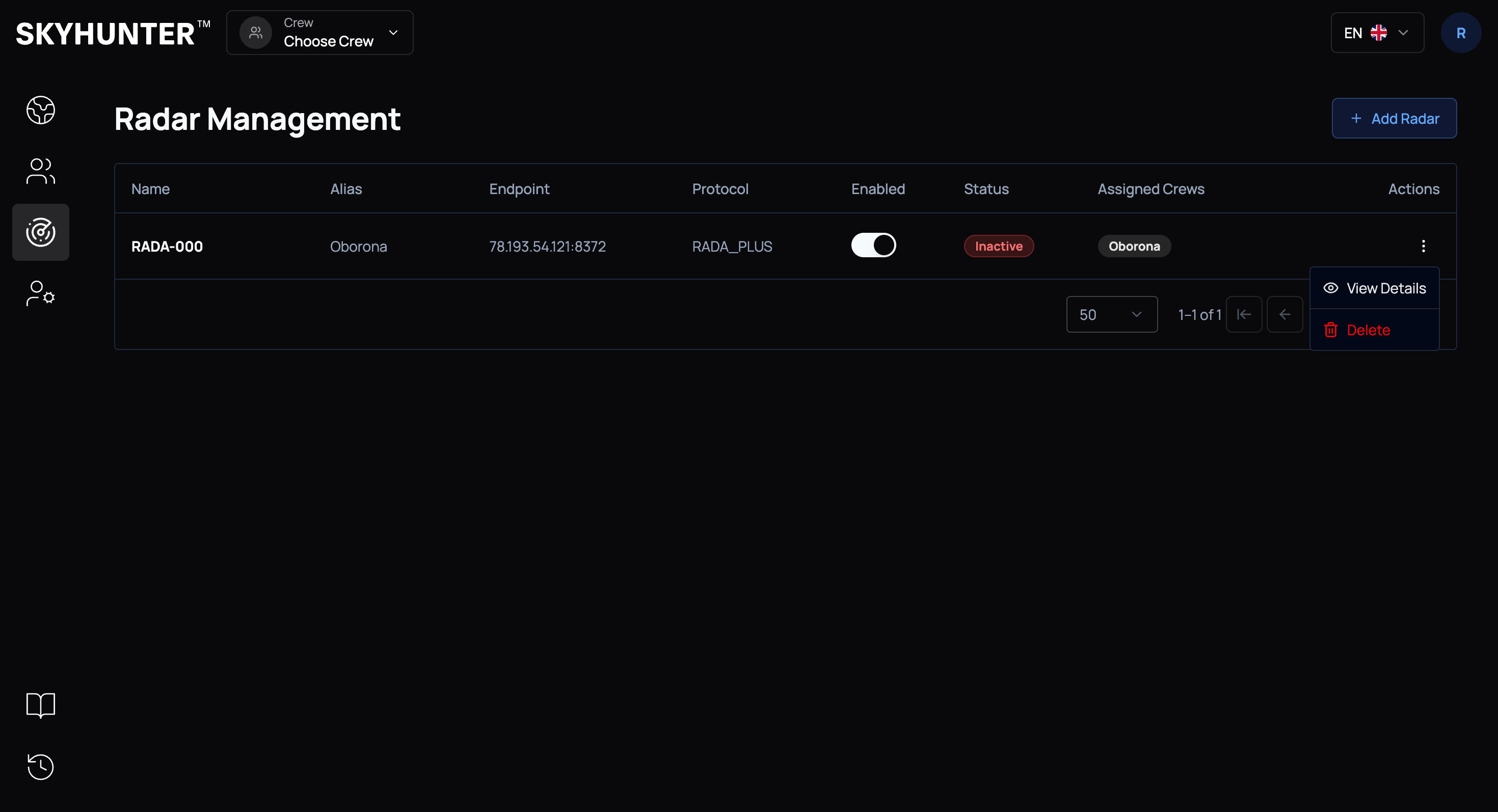
Available actions:
| Action | Description |
|---|---|
| View Details | Open the radar details page |
| Delete | Delete the radar |
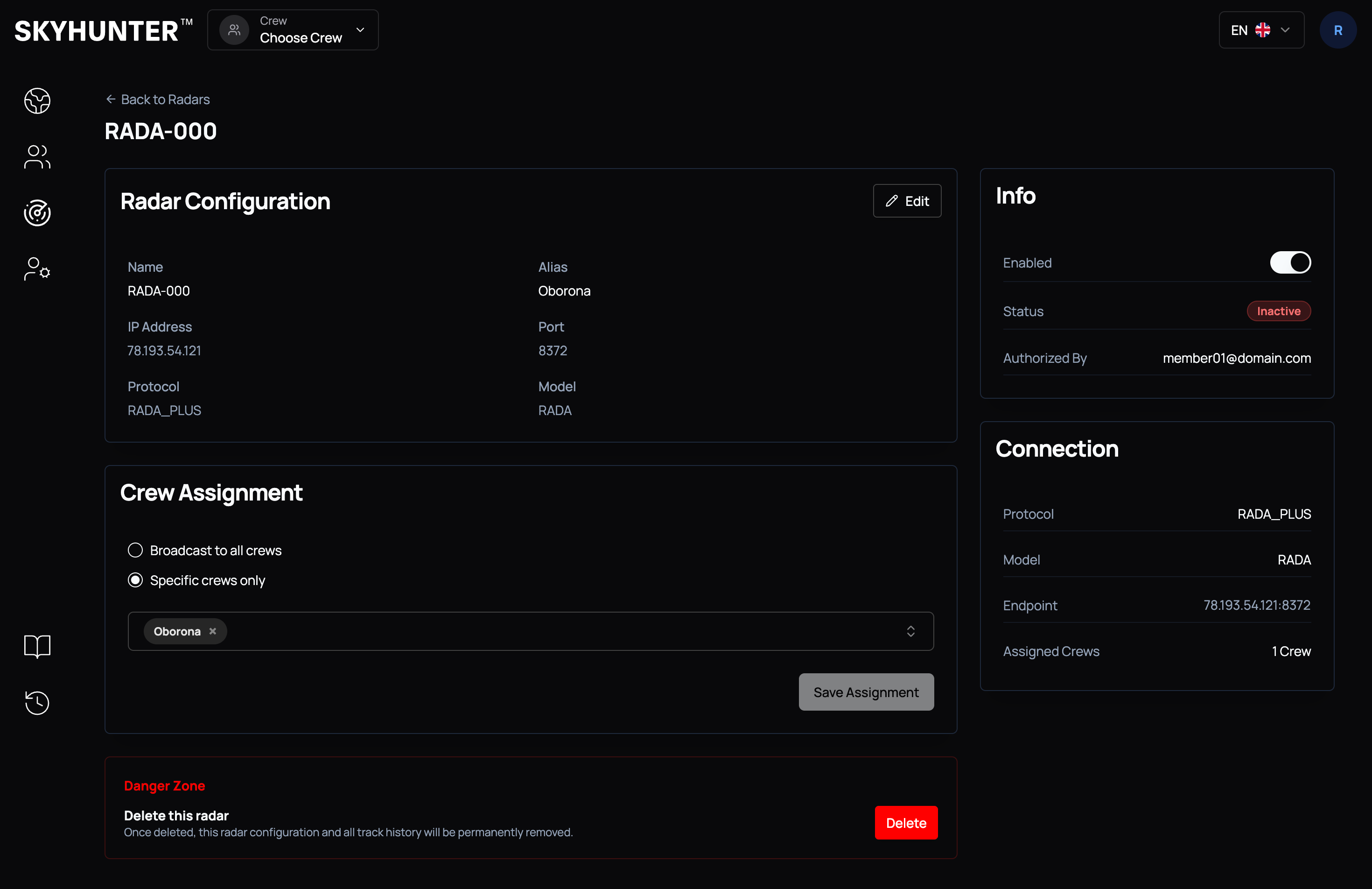
On the radar details page you can:
- view radar information
- modify radar configuration
- add/remove crews
- delete the radar
Displaying Radar Tracks on the Map
After successful radar connection, its tracks will appear on the map.
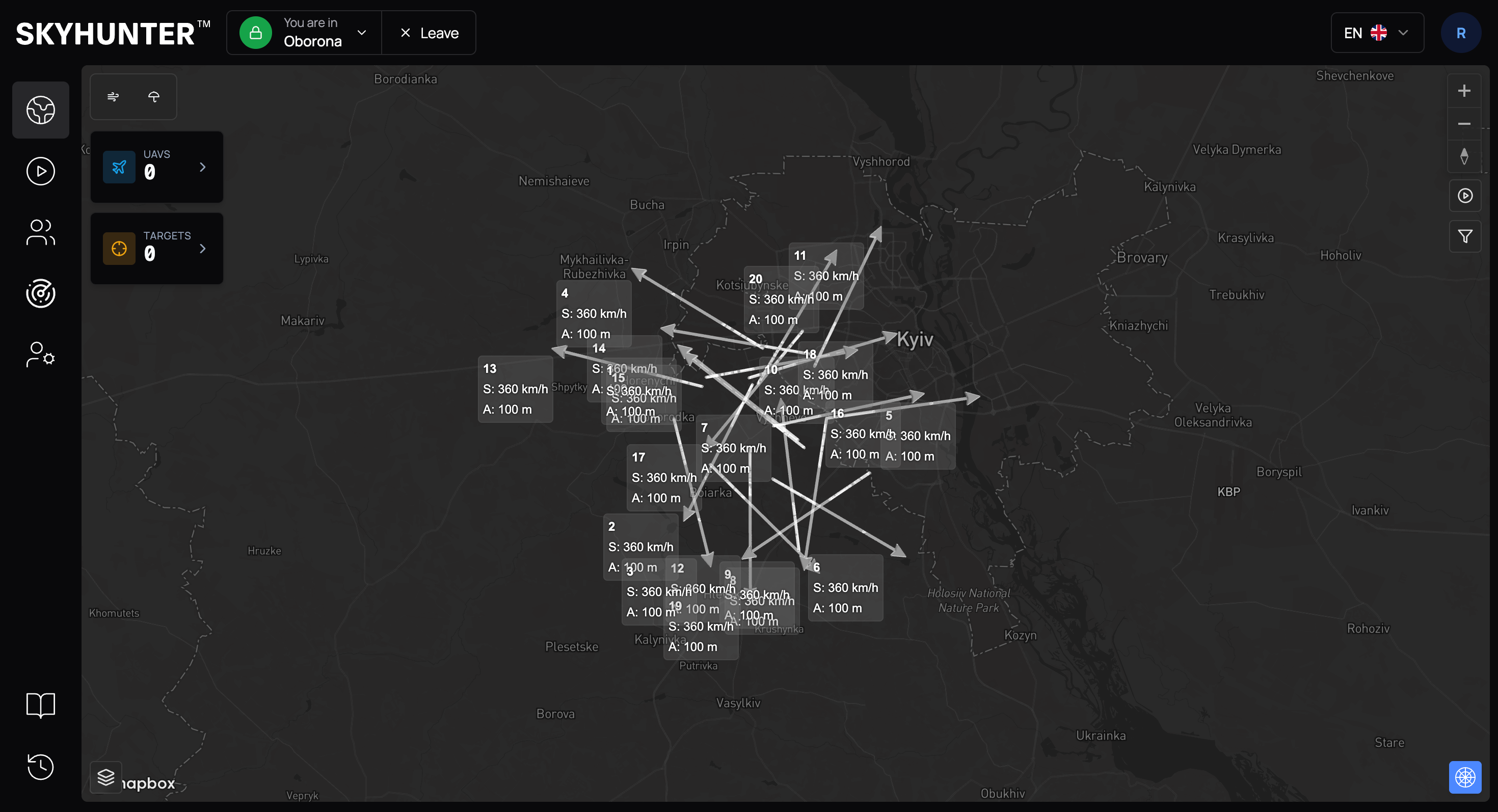
Radar tracks display aerial objects and their movement direction.
Operator Recommendations
- Use clear radar names such as
RADA-000,RADA-North,RADA-East. - Verify the IP Address and Port before activation.
- Use Specific crews only if the radar should be available only to a particular crew.
- Do not delete an active radar during operational activity.
- If the radar status is Inactive, check the network connection, endpoint, and radar state.
- After changing crew assignments, click Save Assignment.