Skymap — Target Assignment
To assign targets, you can use the Skymap service, but to connect to it, you need to install a dedicated VPN service (for example, ZeroTier).
How the connection process works:
- The administrator of the ZeroTier VPN network must provide you with a Network ID (for example
ab000c1def23g4hi) to connect. - You provide this Network ID (
ab000c1def23g4hi) to the SkyHunter team. - The SkyHunter team connects to the VPN network and provides you with their address (for example
z987654yx3). - You pass this address (
z987654yx3) to the ZeroTier VPN network administrator so they can authorize SkyHunter in their system. - After authorization, the ZeroTier VPN administrator provides you with the SkyHunter IP address (for example
78.193.54.121). This IP address will be required later in the configuration.
Log in to the Skymap system using the credentials provided earlier.
IMPORTANT
If you do not have access, contact your Skymap administrator.
Combat Unit Configuration
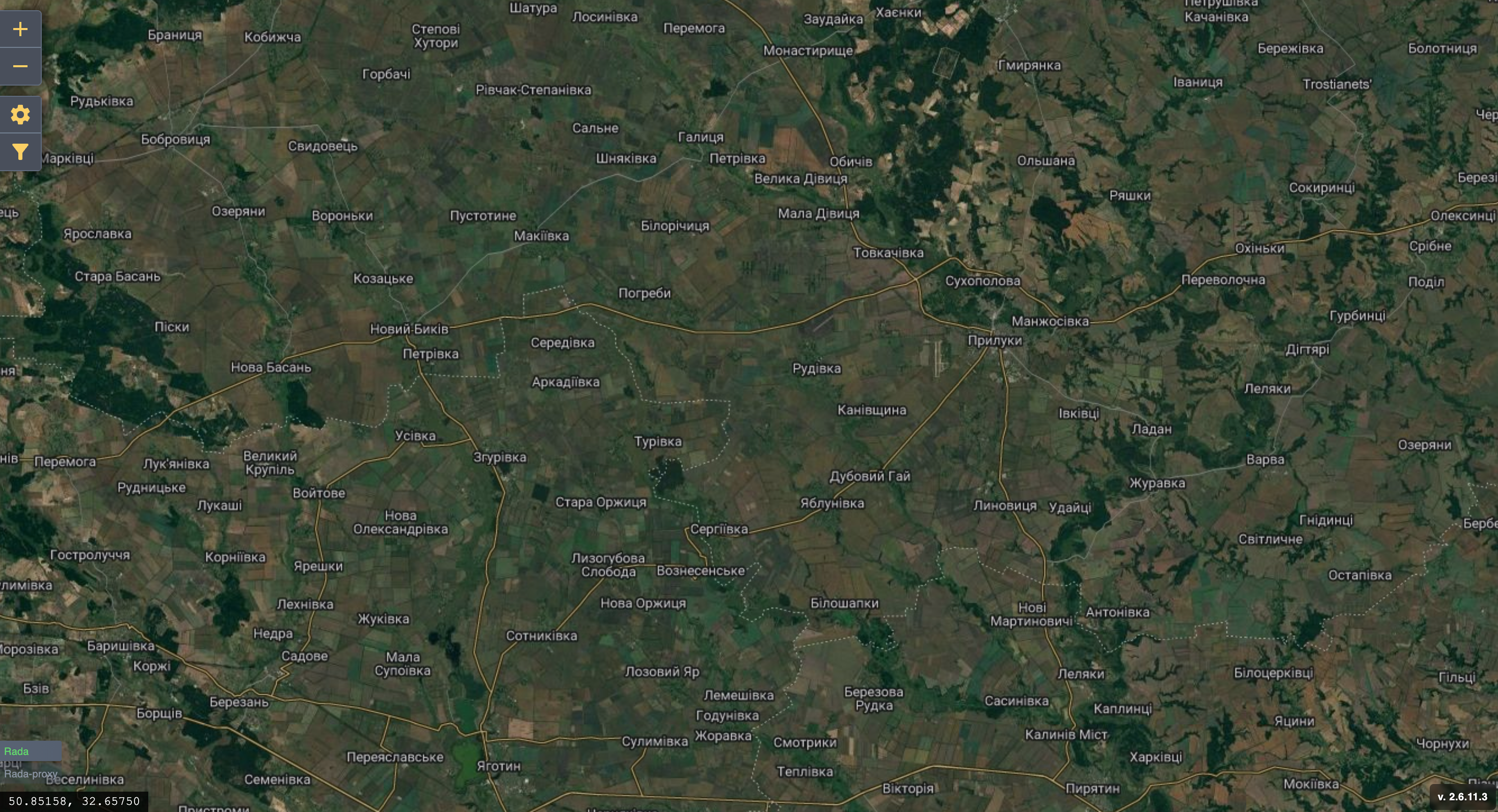
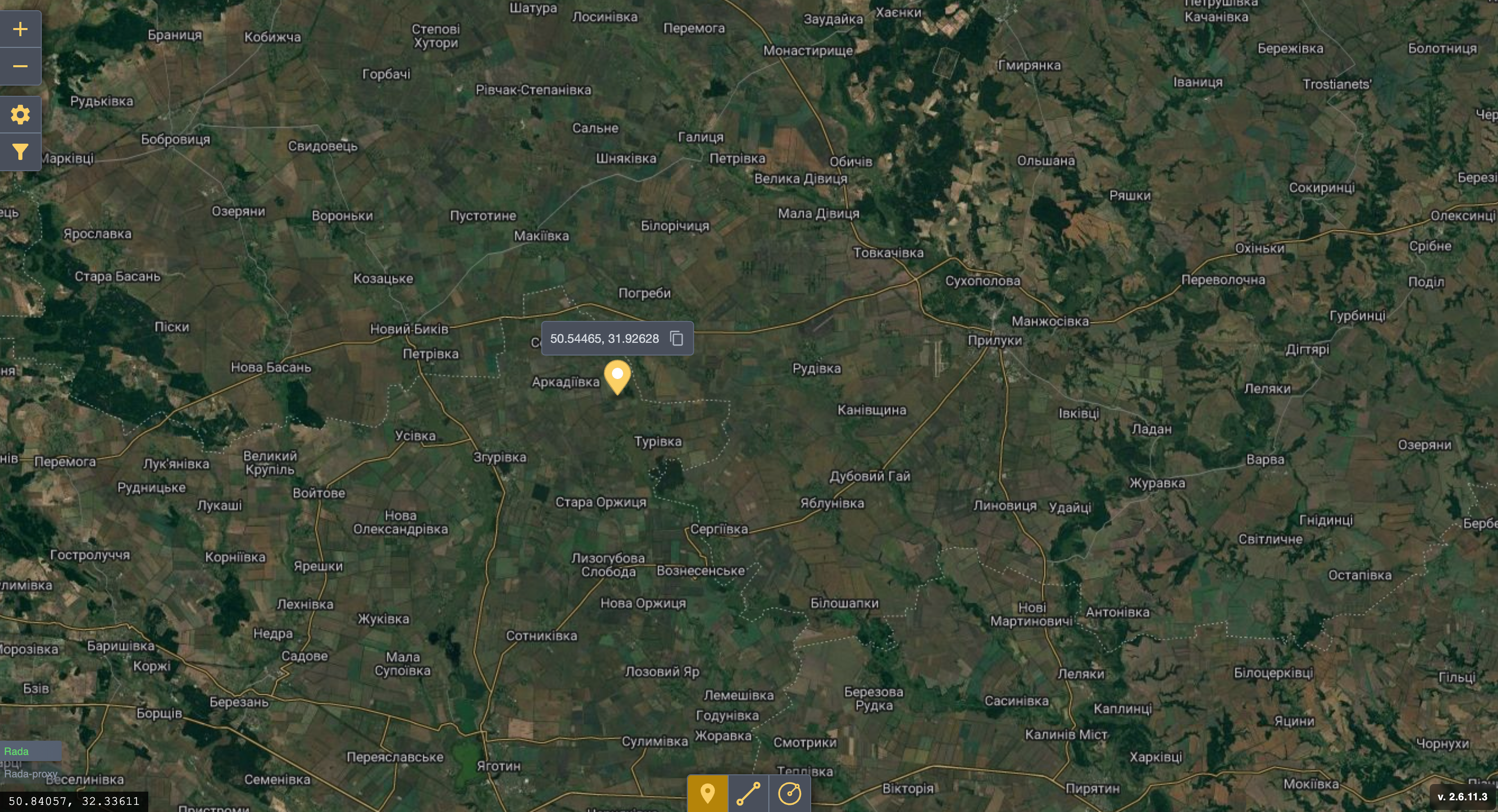
Select a point on the map, double-click to add a unit, and copy the latitude and longitude from the marker.
Click the gear icon, select Admin Panel, and navigate to Units.
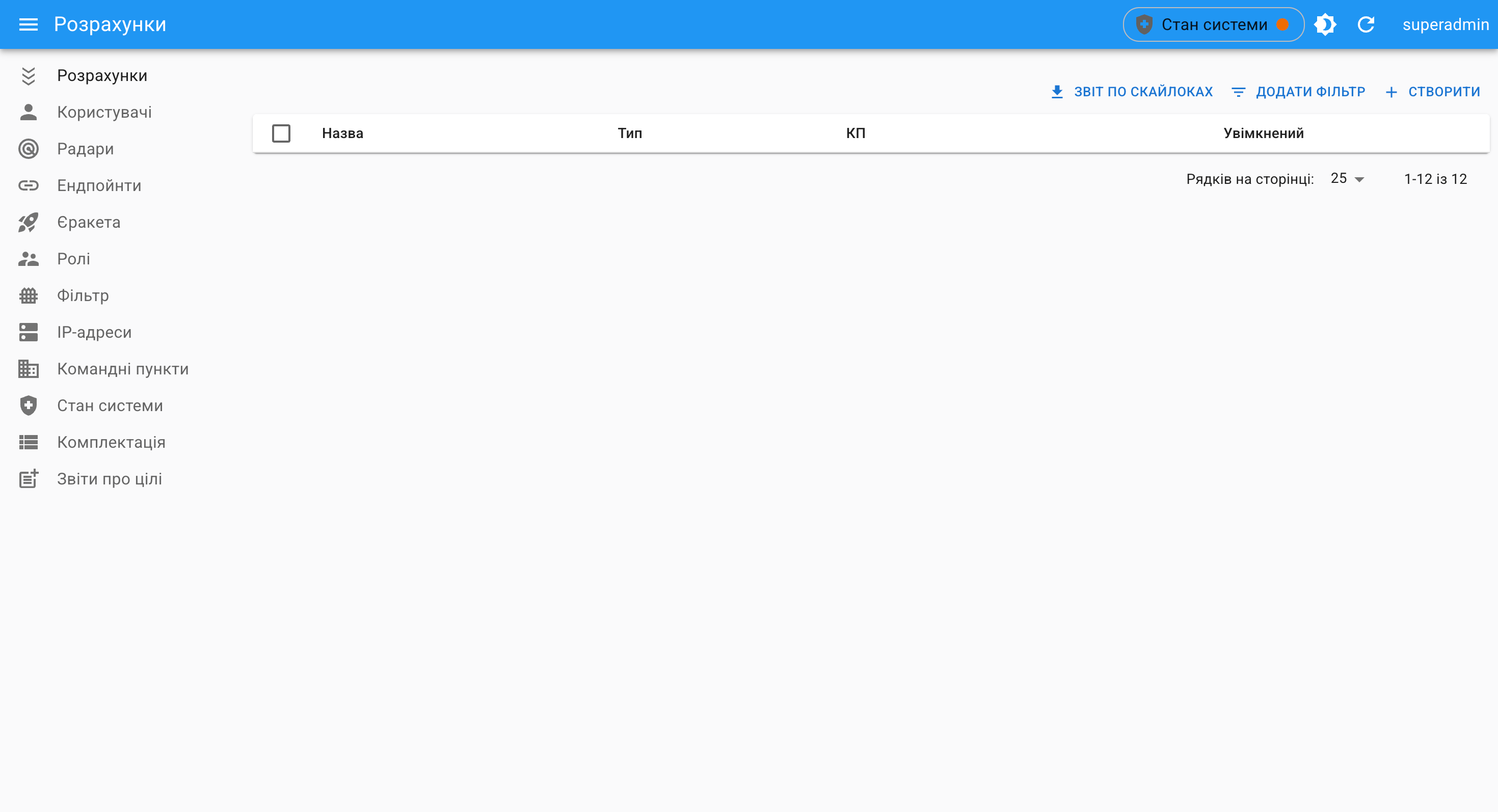
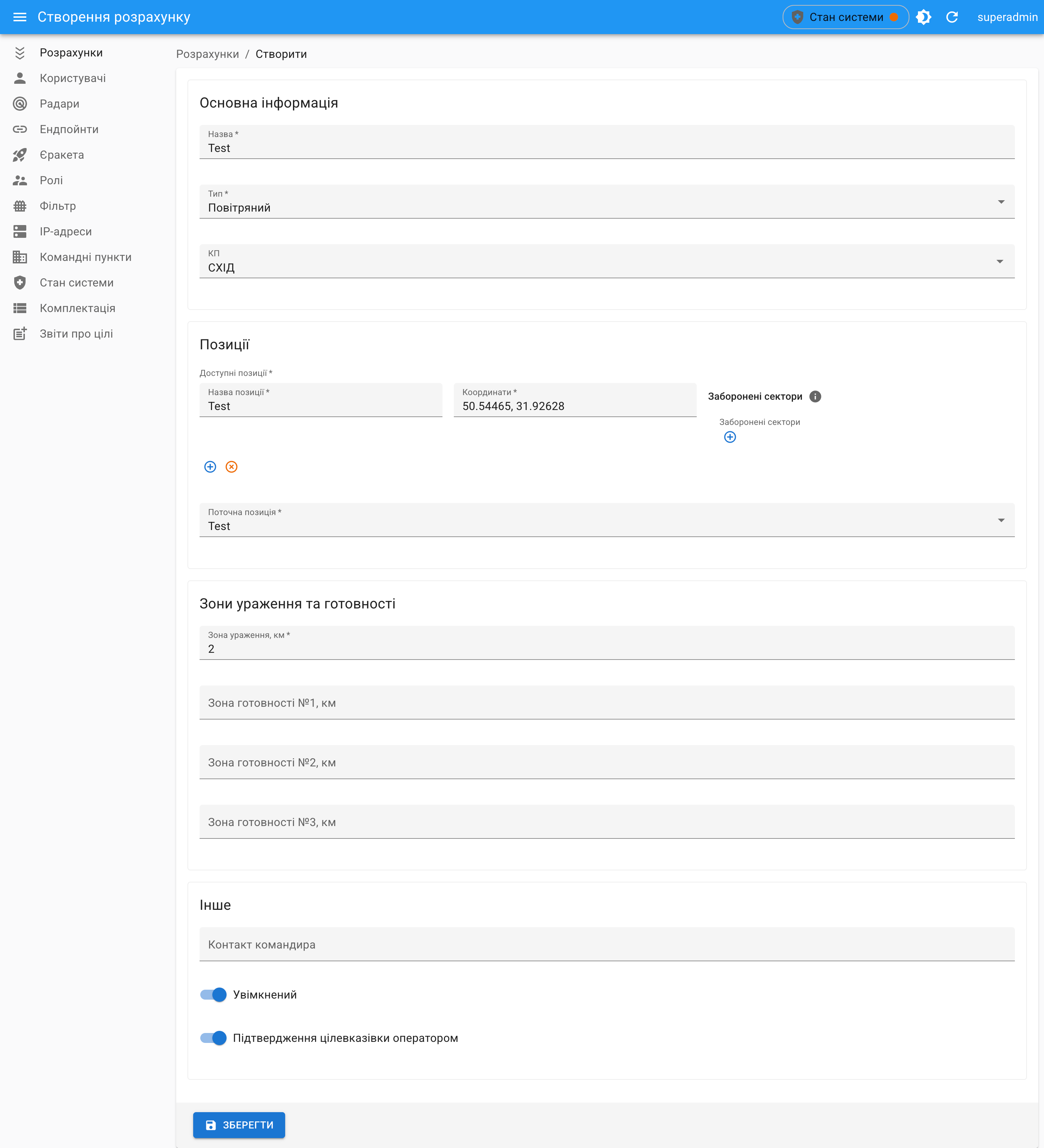
Click Create, fill in all required fields, and save. (Set the type to Air, and use the coordinates copied from the marker.)
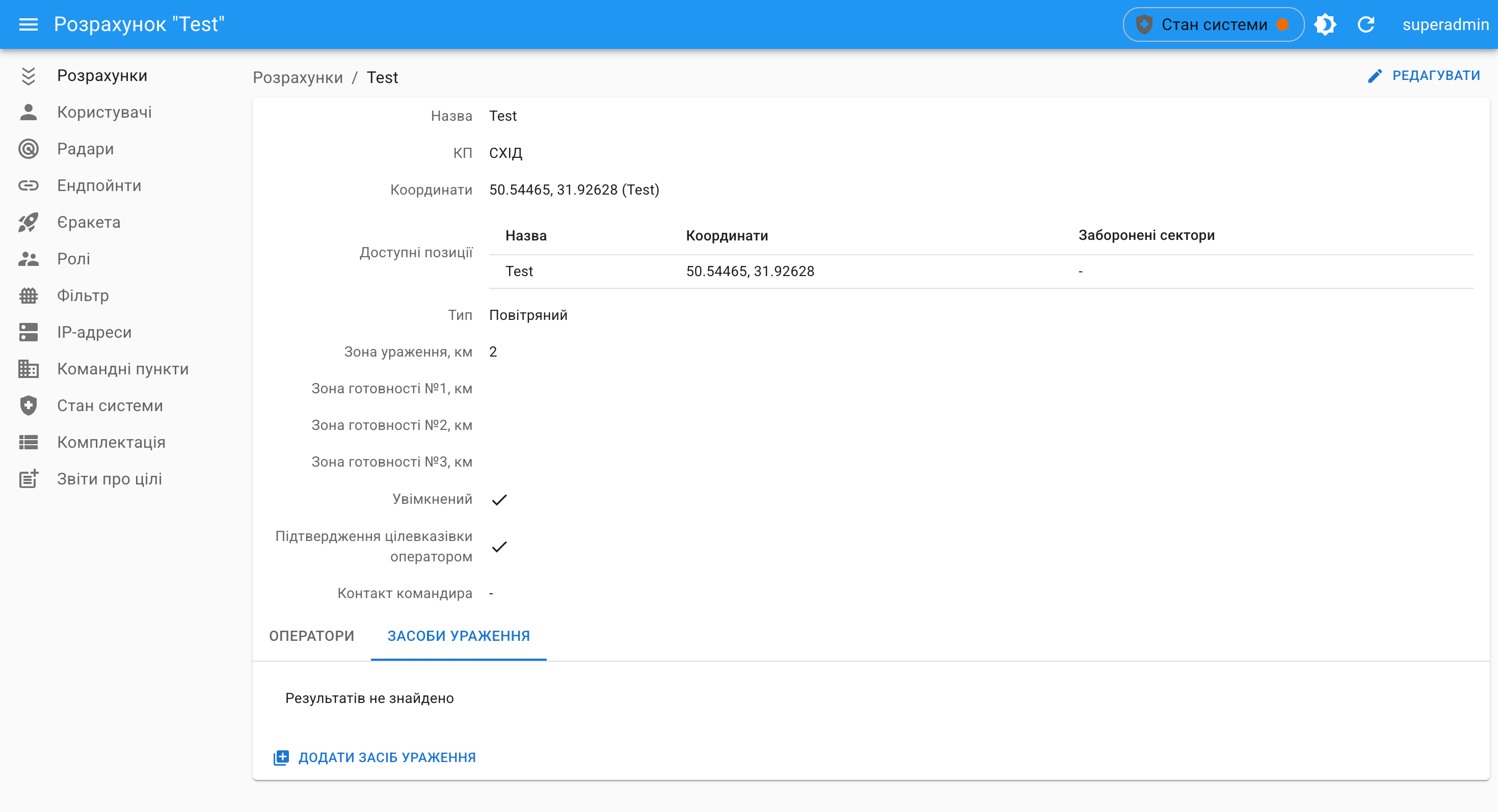
Next, create engagement assets by going to Weapons and adding a new one.
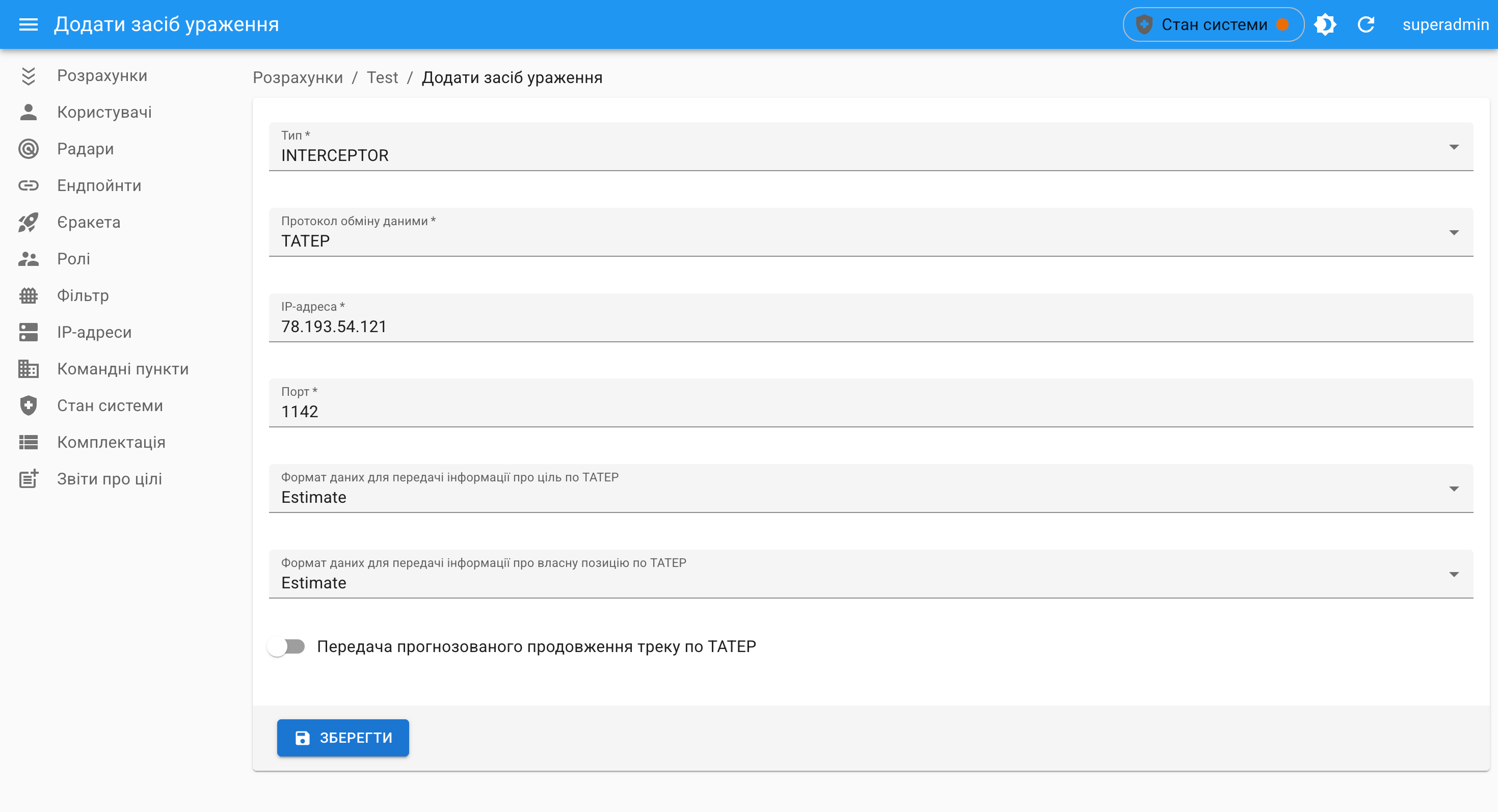
In the IP Address field, enter the one received from the ZeroTier VPN administrator — 78.193.54.121, and in the Port field, enter the one received when creating the crew in SkyHunter — 1142.
WARNING
To verify the integration, assign a track to the newly created unit. (Military personnel know how to do this.)
IMPORTANT
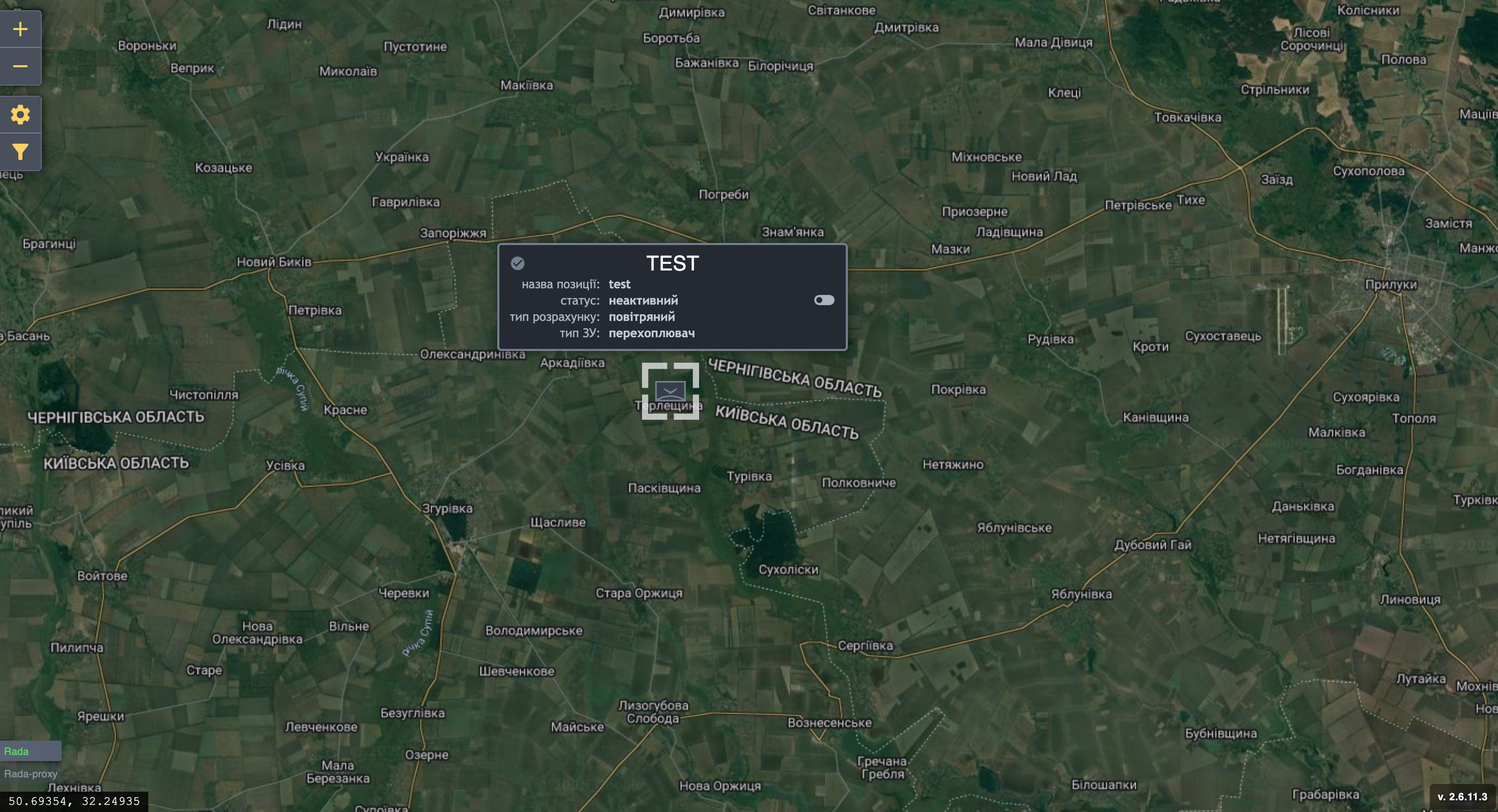
By default, the unit is inactive. To activate it, enable "On Duty" mode.
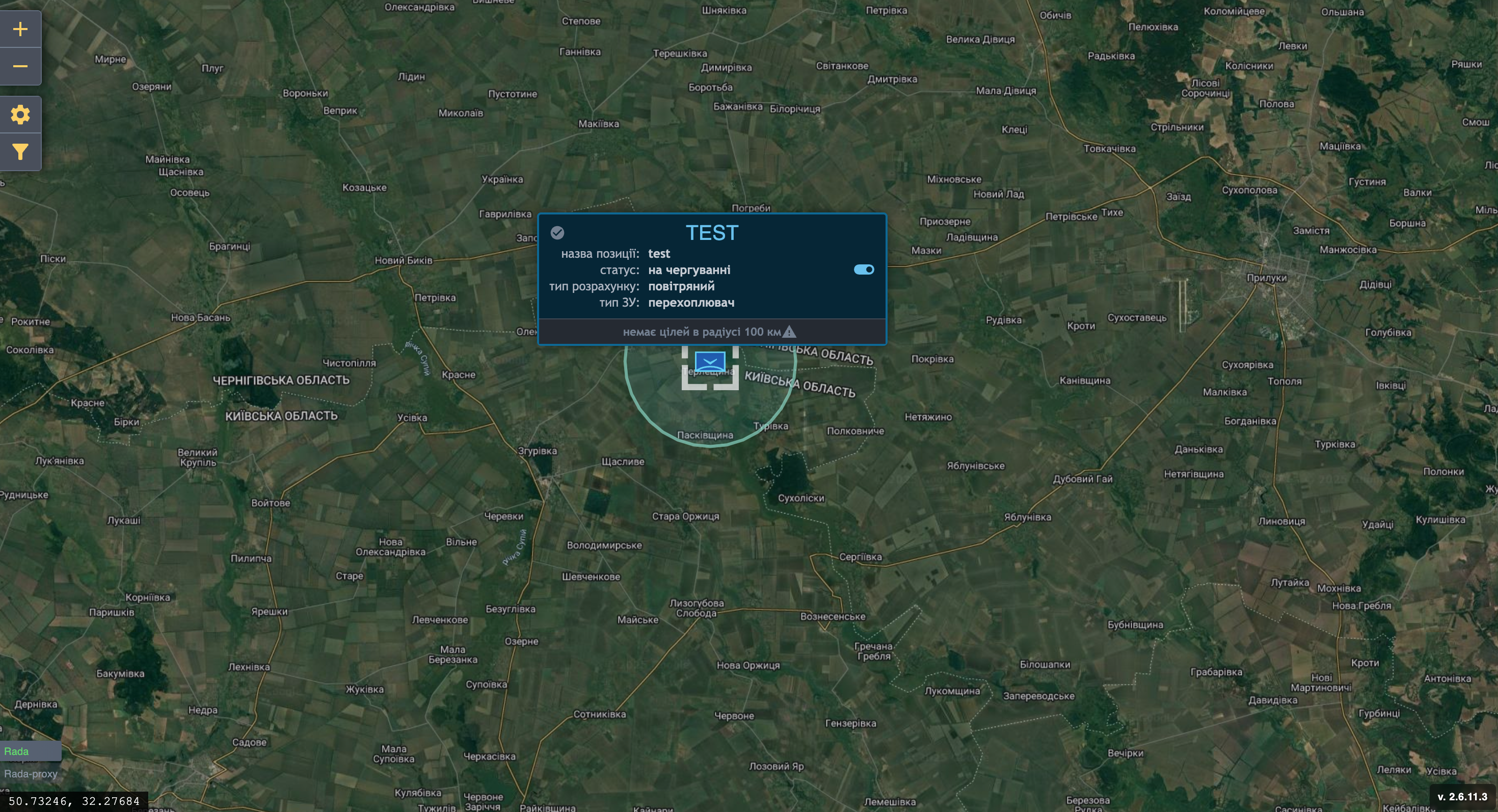
Creating Targets and Assigning Them to a Unit
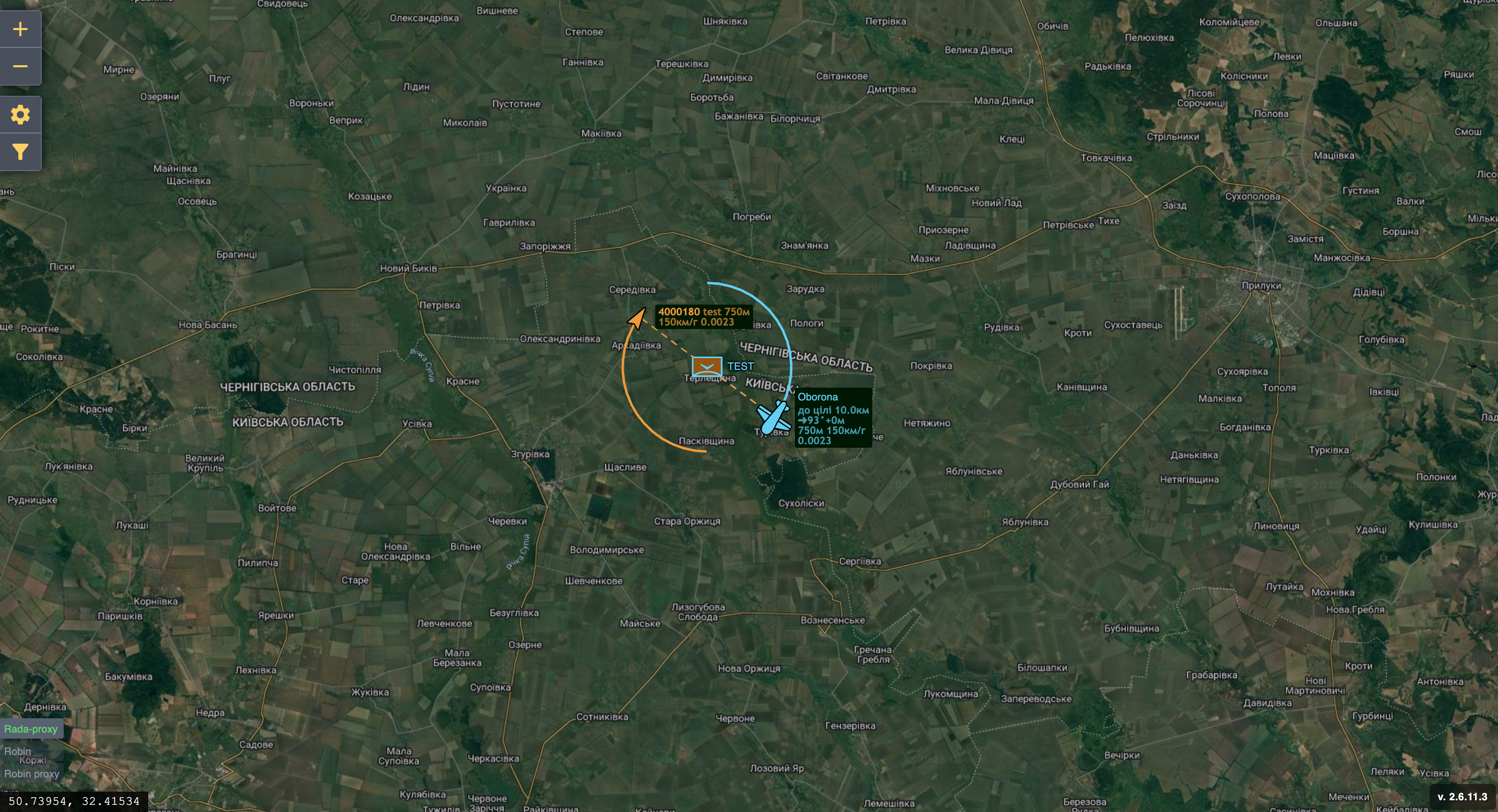
Creating targets in SkyHunter via the Skymap service is used for simulating airspace conditions, training operators, or testing interception algorithms.
In this mode, you can create both friendly and enemy objects and assign them to a specific unit (crew).
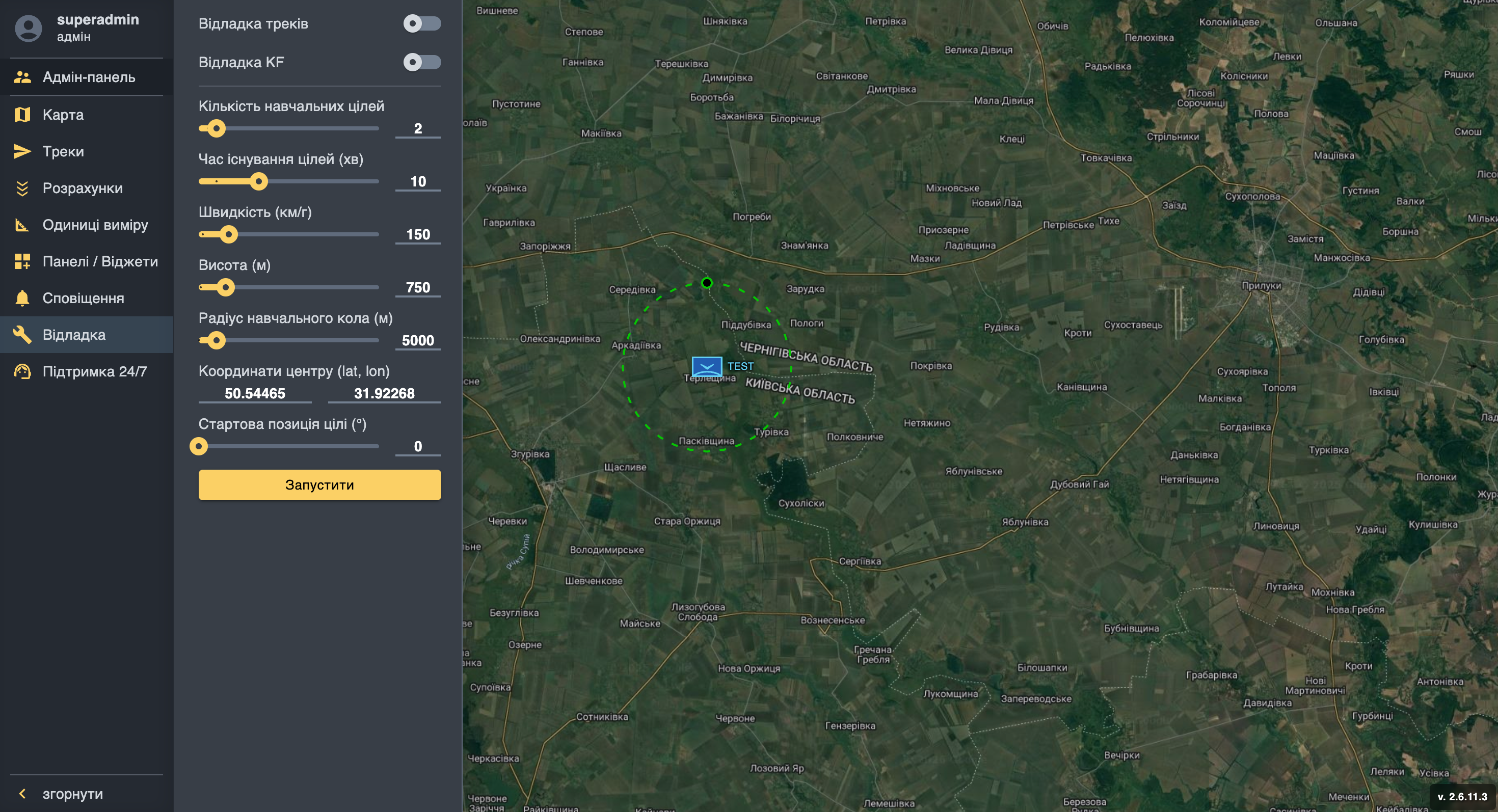
Click the gear icon and select the Debug menu.
In the opened settings window, you can keep the default parameters. You only need to change the coordinates (paste those copied earlier from the map marker) and specify the number of training targets. Then click Start.
The system will create aerial objects at the specified point and add them to the current Skymap session.
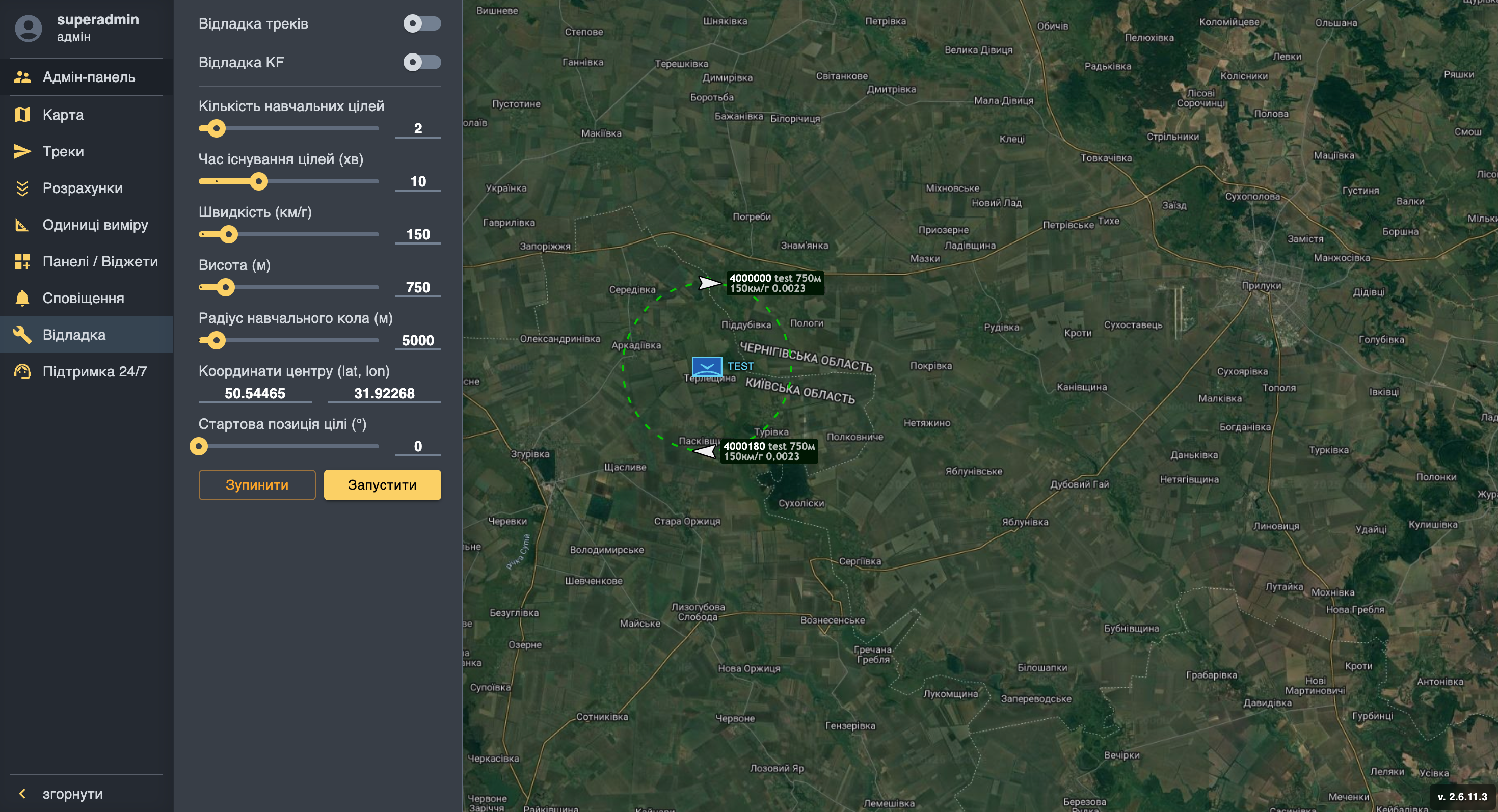
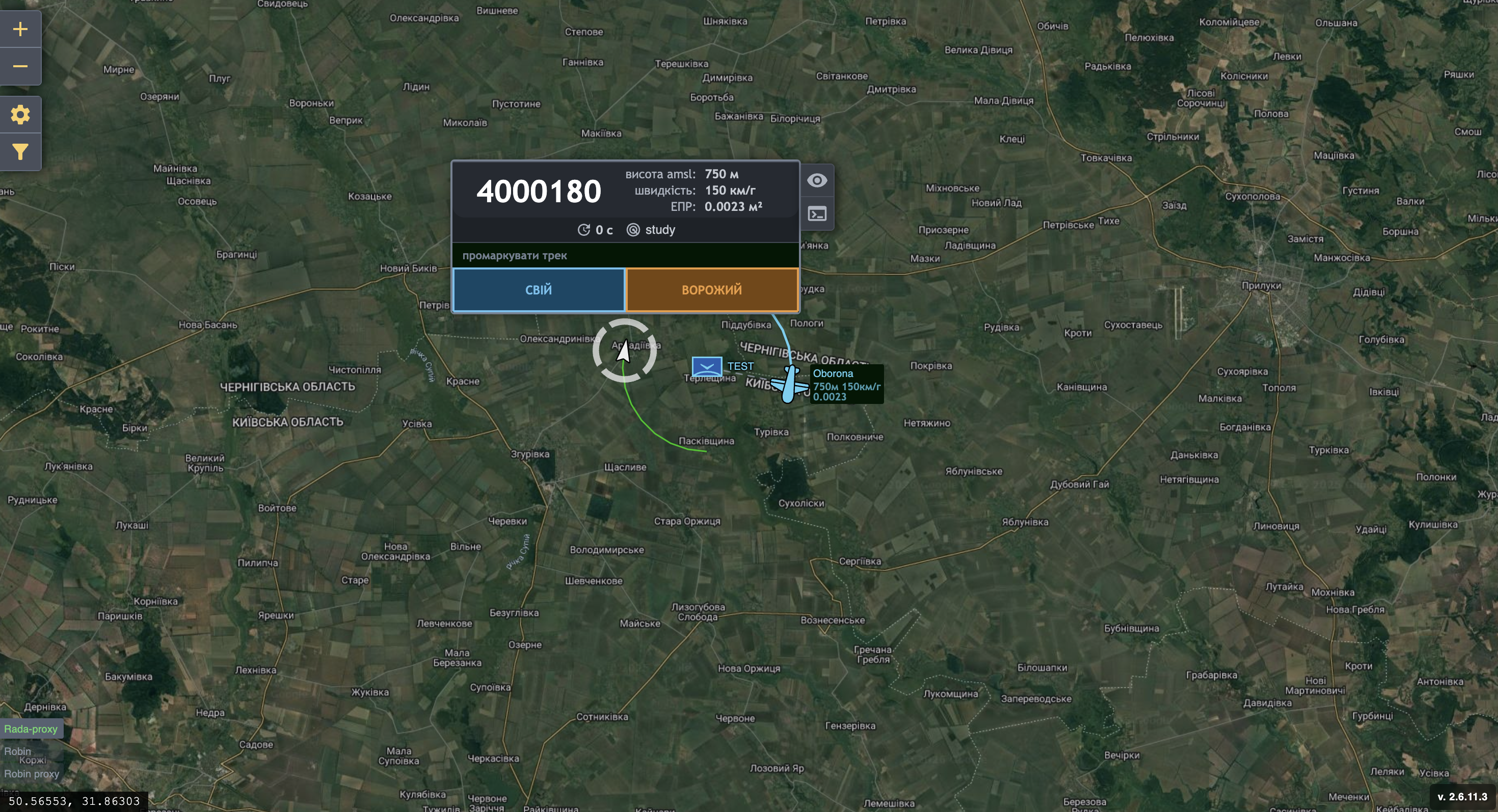
Select the aircraft that will be marked as friendly.
To do this, click on the corresponding object on the map and press Friendly.
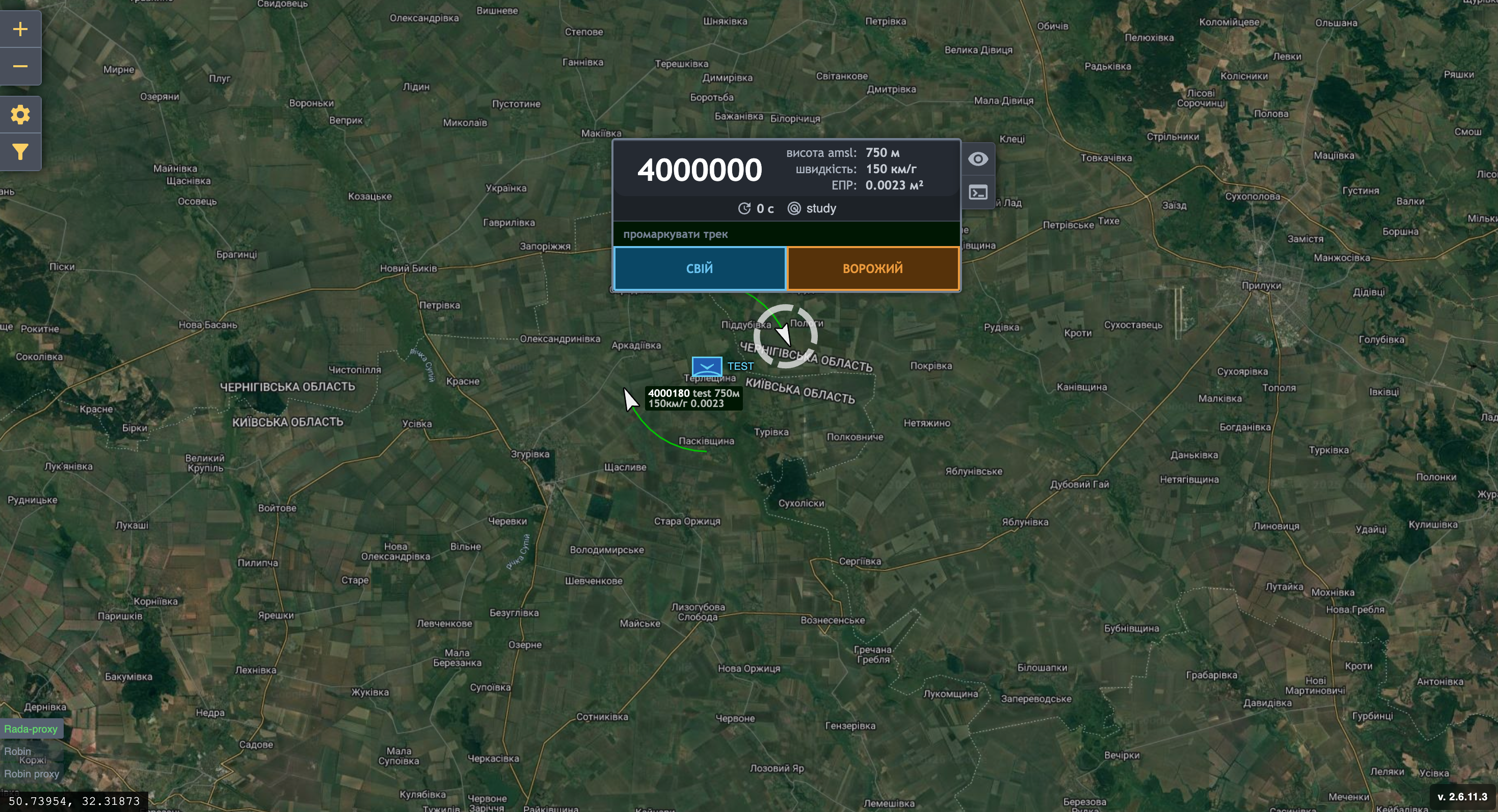
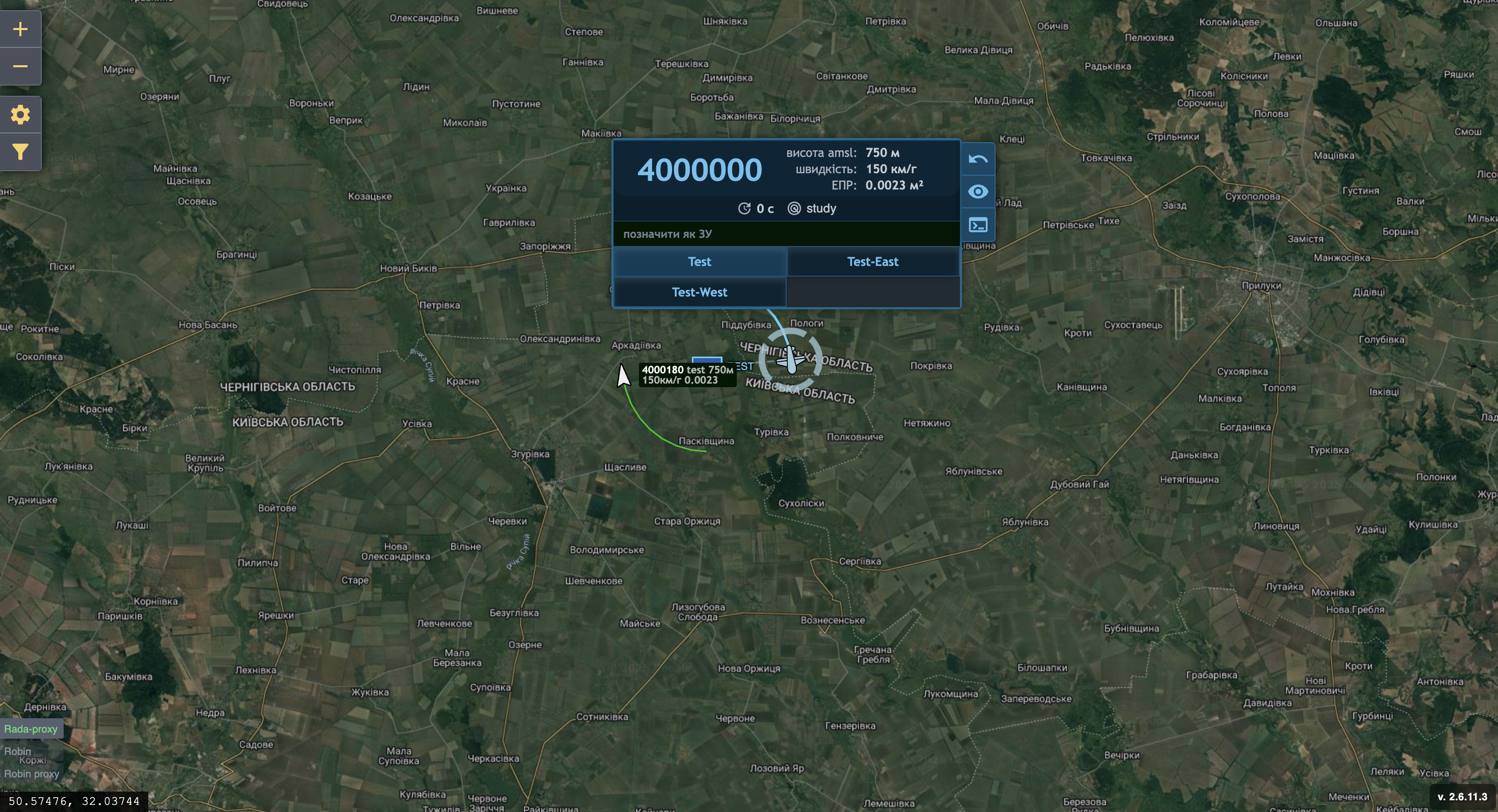
In the next step, assign the target to your unit ("Test").
Now define an enemy aircraft.
To do this, click on the selected aircraft and press Enemy.
In the next step, assign the target to your unit ("Test").
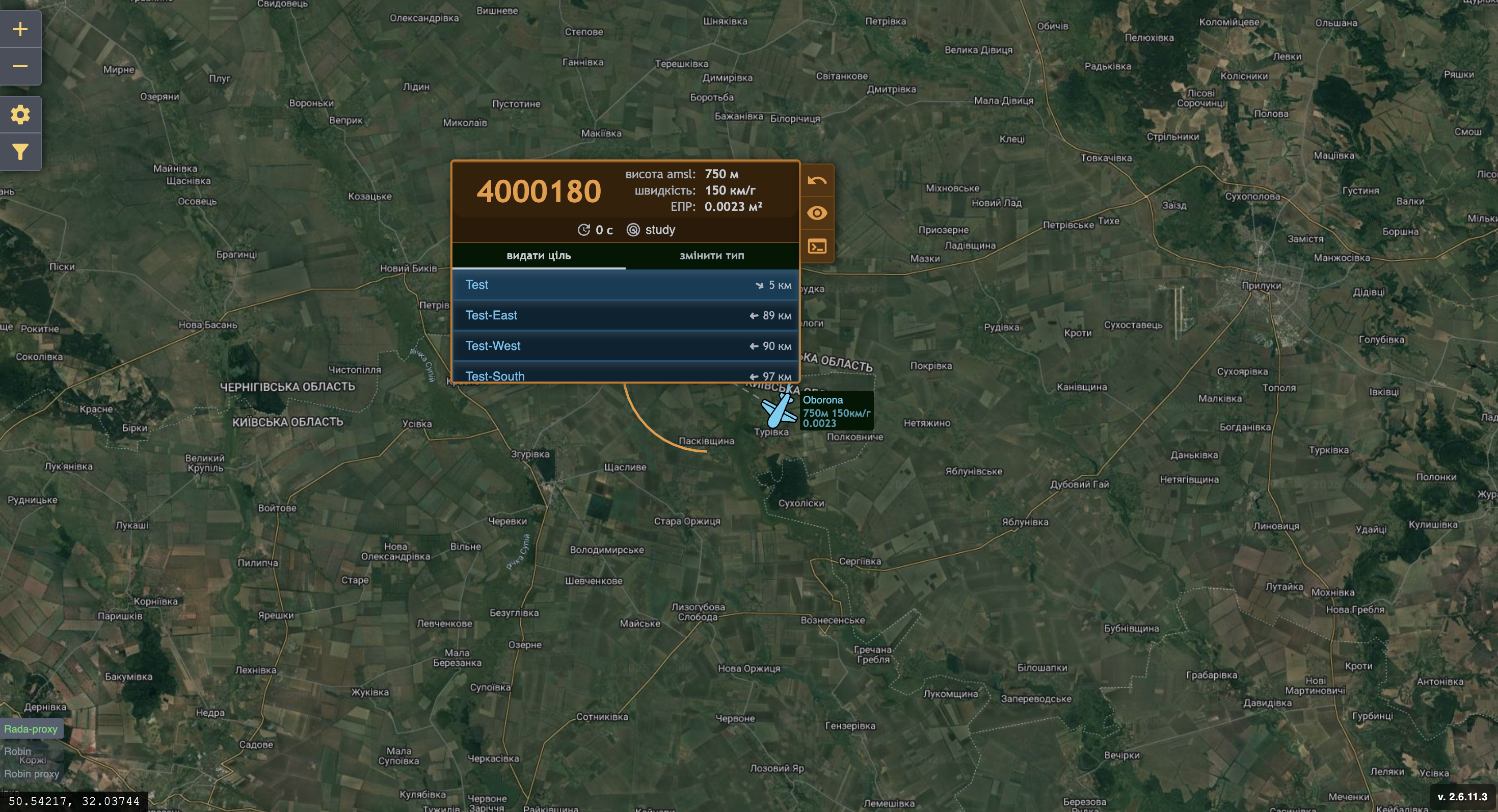
If needed, you can create and assign additional targets. This allows you to simulate complex scenarios.